
Pre-Requisite
-
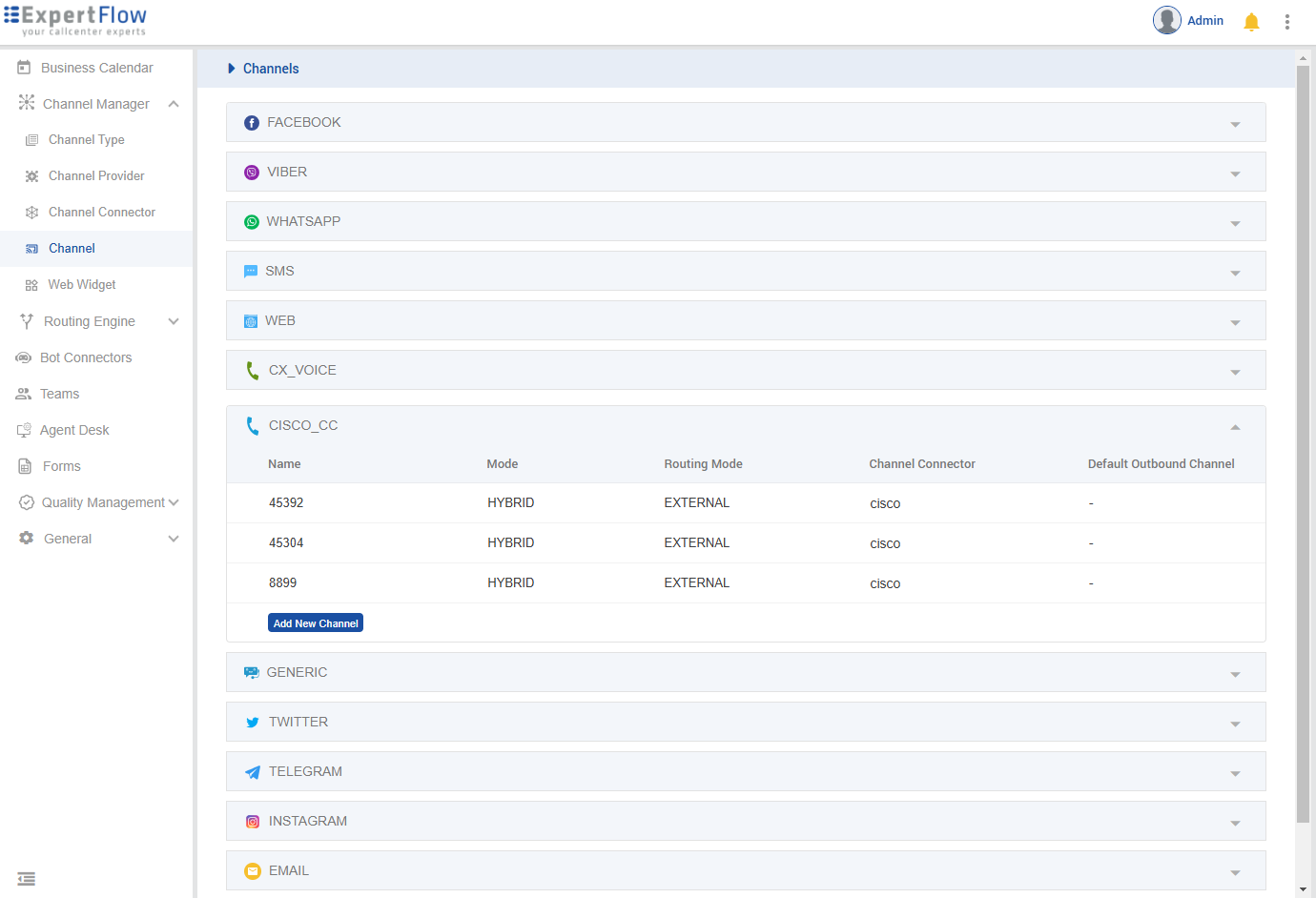
Create New Channels of CISCO_CC for both Inbound and Outbound, for outbound select a 4-5 Digit Number, and set it as
UCCE_OB_SERVICE_IDENTIFIERinvalues.yaml
-
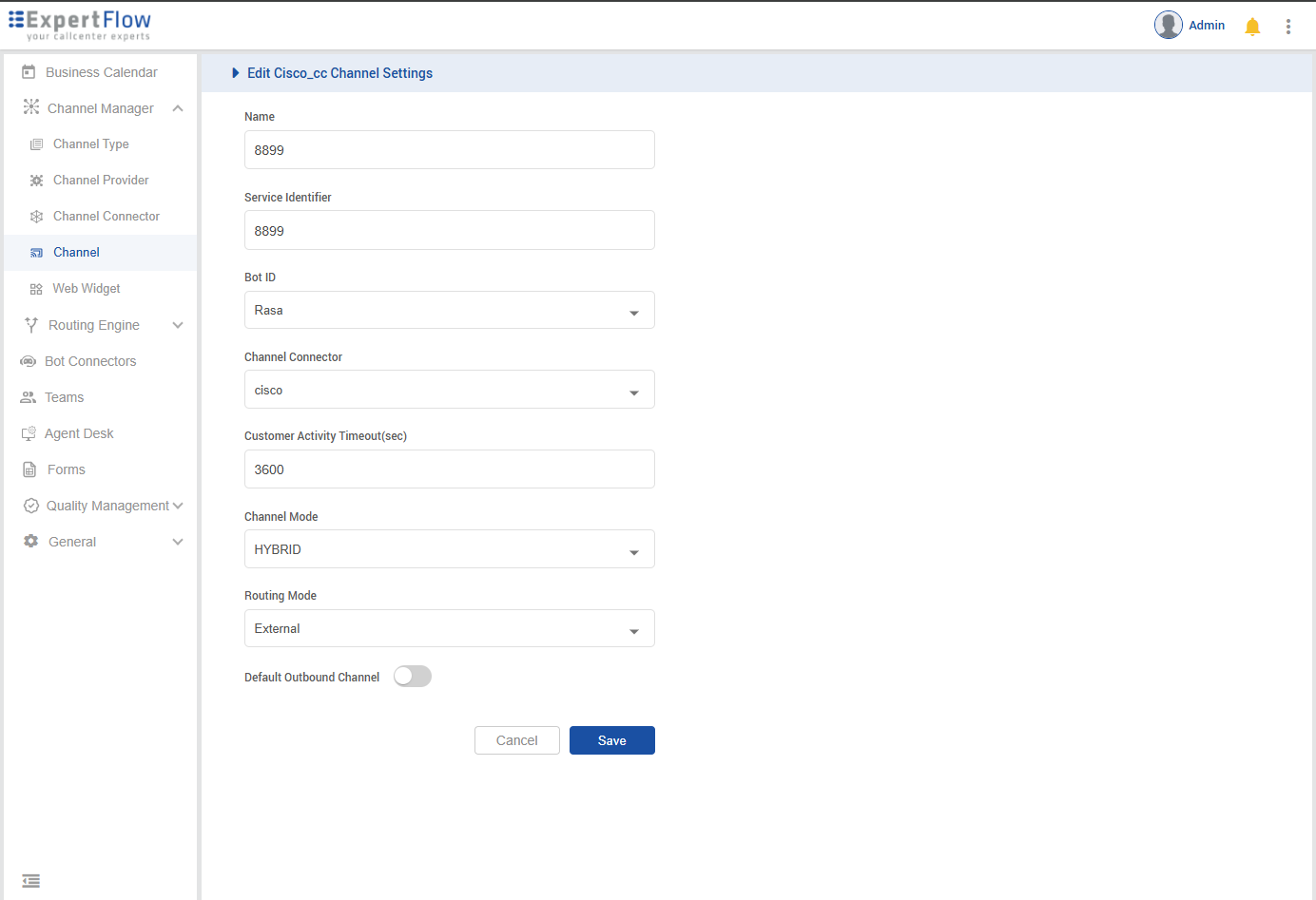
Set Routing Mode as External
-
Set the Channel Model as HYBRID
-
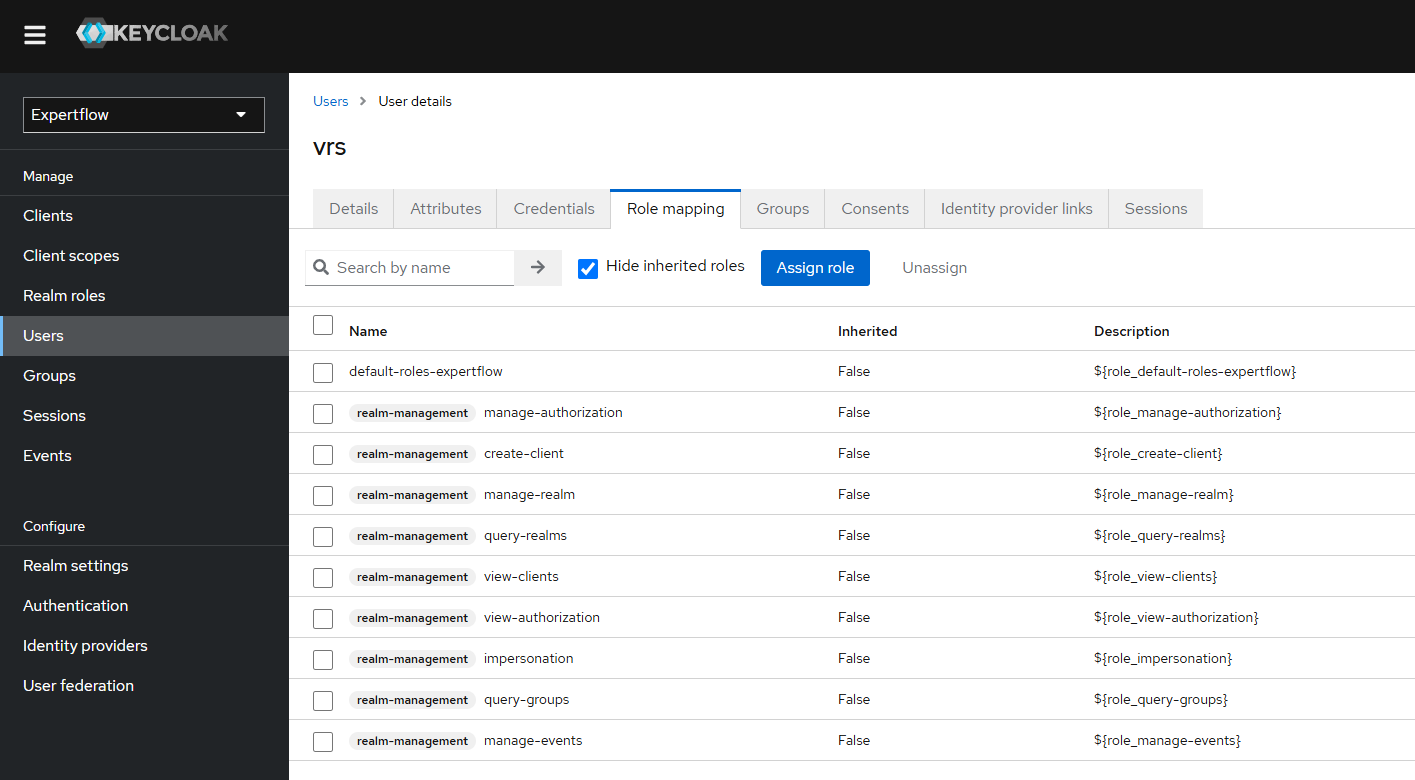
Create a new user in Realm, set its name & password as ‘vrs’, and assign all the ‘realm-management’ roles to that user. Set
KEYCLOAK_USERNAME & KEYCLOAK_PASSWORDinvalues.yaml
Step 1: Clone the Repository
clone the repository using the following command.
git clone -b CX-4.8 https://efcx:RecRpsuH34yqp56YRFUb@gitlab.expertflow.com/cim/cim-solution.git
Change the directory.
cd cim-solution/kubernetes
Step 2: Update the Configurations
Open the helm-values/cx-qm-custom-values.yaml file and update the ingressRouter
vi helm-values/cx-qm-custom-values.yaml
Step 3: Update the env variables
|
Env var |
Description |
Example values |
|---|---|---|
|
RECORDING_SERVER_FQDN |
Recording Server IP |
https://192.168.1.126 |
|
EFCX_FQDN |
CX FQDN |
https://efcx-qm.expertflow.com/ |
|
CALL_BACK_URL |
Webhook for conversation creation |
http://webhook.site/8d7dc0b5-b886-40ee-9203-150699e4f9ce |
|
UCCE_ENGINE |
UCCE DB Engine |
sqlserver |
|
UCCE_IP |
UCCE IP |
192.168.1.72 |
|
UCCE_PORT |
UCCE DB port |
1433 |
|
UCCE_DATABASE |
UCCE |
uc126_awdb |
|
UCCE_USERNAME |
UCCE |
sa |
|
UCCE_PASSWORD |
UCCE |
Expertfllow464 |
|
UCCE_OB_SERVICE_IDENTIFIER |
Service Identifier for outbound calls |
8899 |
|
KEYCLOAK_REALM_NAME |
Realm name from EFCX keycloak |
expertflow |
|
KEYCLOAK_CLIENT_ID |
KeyCloak client ID from EFCX keycloak |
cim |
|
KEYCLOAK_CLIENT_SECRET |
Add the client secret from the EFCX keycloak |
ef61df80-061c-4c29-b9ac-387e6bf67052 |
|
KEYCLOAK_USERNAME |
Keycloak User with all the realm-management Roles |
vrs |
|
KEYCLOAK_PASSWORD |
The password of the keycloak User with all the realm-management Roles |
vrs |
|
KEYCLOAK_AGENT_ROLE_NAME |
The role that needs to be assigned to the new Agent created with QM-connector |
agent |
|
KEYCLOAK_AGENT_ROLE_ID |
Role-Id that needs to be assigned to new Agent created with QM-connector |
1903735d-5bcc-4253-a05e-ea1487195c9c |
|
DB_NAME |
Name of the VRS database |
vrs |
|
DB_USER |
Username for VRS database |
sa |
|
DB_PASSWORD |
Password for the VRS database |
Expertflow123 |
|
DB_ENGINE |
The engine on which VRS database is running i.e MySQL |
sqlserver |
|
DB_HOST |
Name or IP of the host on which the VRS database is active |
192.168.1.126 |
|
DB_PORT |
Port of the VRS Database |
1433 |
|
DB_DRIVER |
Driver on which VRS database is running i.e mysql drive |
com.microsoft.sqlserver.jdbc.SQLServerDriver |
Step 4: Deploy the QM-Connector Helm Chart
Deploy the helm chart using the following command
helm upgrade --install --namespace=expertflow --set global.efCxReleaseName="ef-cx" qm --debug --values helm-values/cx-qm-custom-values.yaml expertflow/qm --version 4.8.0
Check the pods by running the following command
kubectl get pods -n expertflow | grep qm-connector