
Expertflow develops a Customer Widget under Expertflow CX as a sample implementation of the web channel.
Customization of Customer Widget
Customers can start the chat using the Customer Widget, which businesses can customize to meet their specific requirements.
Create a Customer Widget in the Unified Admin
The Business administrators can create customized Customer Widgets and that customization can be fetched in Customer Widget applications using a unique Widget Identifier eg: “Web“. It can be created in the Unified Admin → Customer Widget component as per business requirements.
This identifier is case-sensitive.
To check details on the types of configurations that can be applied to the widget, click here.
Other Configurations
The following configurations can be created in the unified-admin => web widget component as per their requirements:
|
Widget Identifier |

|
|
Widget Title |

|
|
Widget Subtitle |

|
|
Pre Chat Form |

Dynamic Form coming from Unified-admin’s form component. |
|
Language |

|
|
Theme Color |
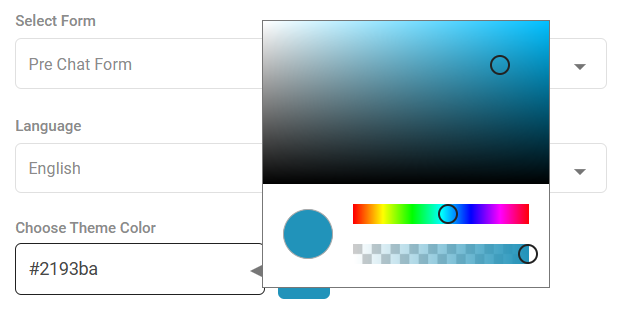
|
|
Enable Emoji |

|
|
Enable File Transfer |

|
|
Enable Font Resize |

|
|
Enable Dynamic Link |

|
|
Enable Download Chat Transcript |

|
|
Enable Web-RTC |
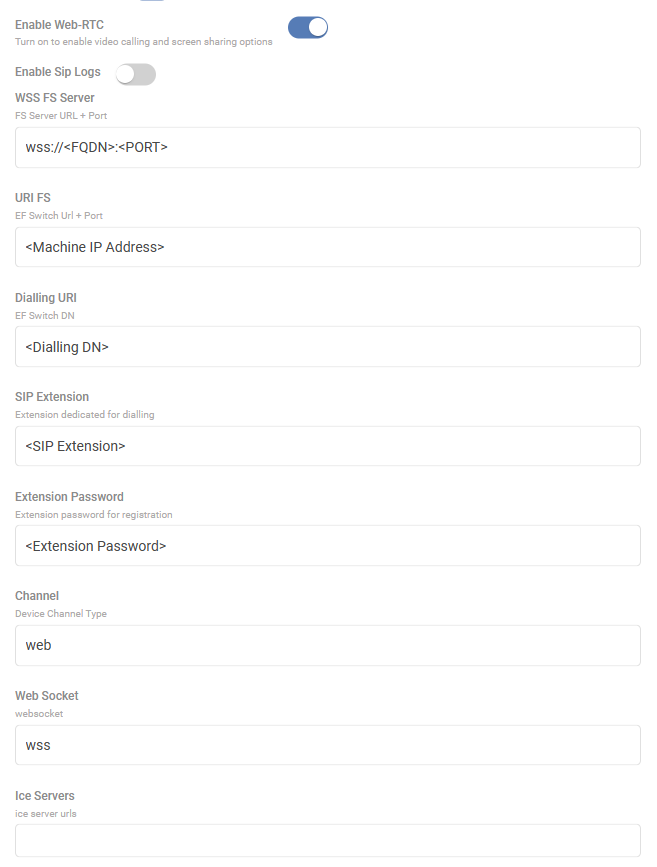
Note: Refer to the RTC Team for FS Configurations. |
|
Enable Callback |
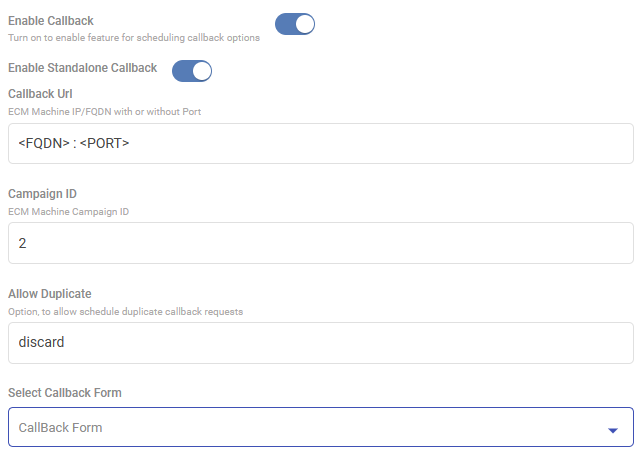
Note: Currently, callback is only supported with Expertflow’s ECM. |
|
Enable Webhook Notification |
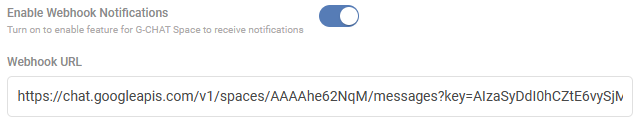
|
Dynamic custom fields in web widget configuration
Admins can now add and manage dynamic custom fields in each web widget, using an “add” button to define multiple field types that are stored in the widget’s object model and remain editable whenever that specific widget is updated.
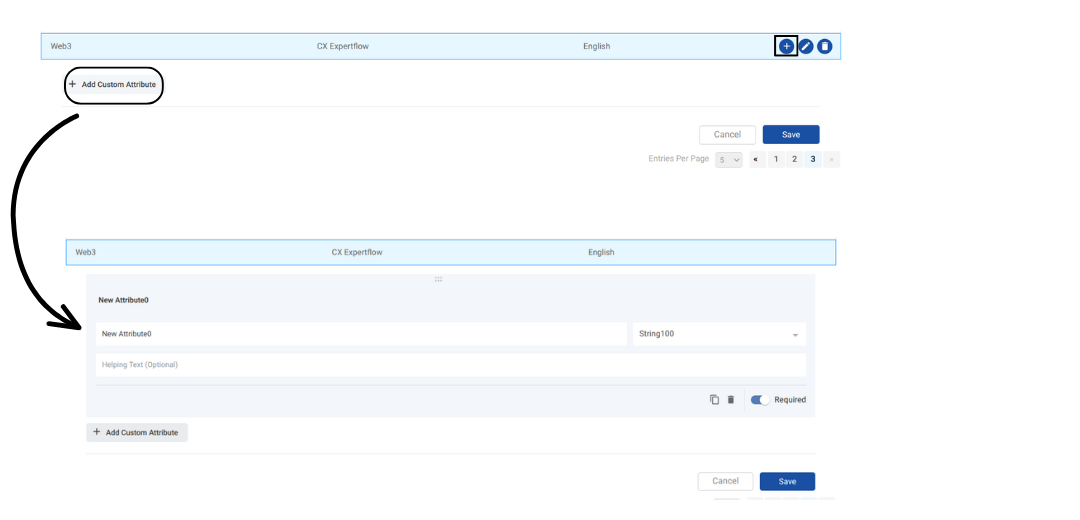
Once the custom attributes are added , the values of these custom attributes can be added while editing that particular widget.
Customer Identification in CX:
When identifying customers during the pre-conversation process, a specific field needs to be created in Unified Admin, and that is the Pre-conversation Form. The 'Phone' field serves as the Channel Customer Identifier. However, Business Administrators can customize this according to their business needs.
To set up the customer identifier in CX for Web Chat:
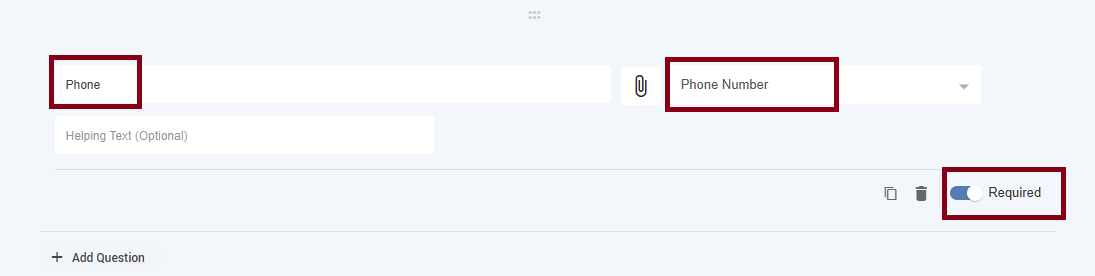
Ensure you have at least one required field in the pre-conversation form, such as 'Phone'
When creating the required field, input the label as 'Phone' in the Attribute Name. The system automatically generates an Attribute Key in lowercase, replacing spaces with underscores. For instance, the Attribute Key for 'Phone' will be 'phone,' and it is case-sensitive.
Use the auto-generated key of the chosen field as your customer identifier in the 'ef-cx-custom-values.yaml' file.
-
By default, the 'phone' key is defined in 'CHANNEL_IDENTIFIER' as the customer identifier in the 'helm-values/ef-cx-custom-values.yaml' file, but you can replace it with your preferred choice.
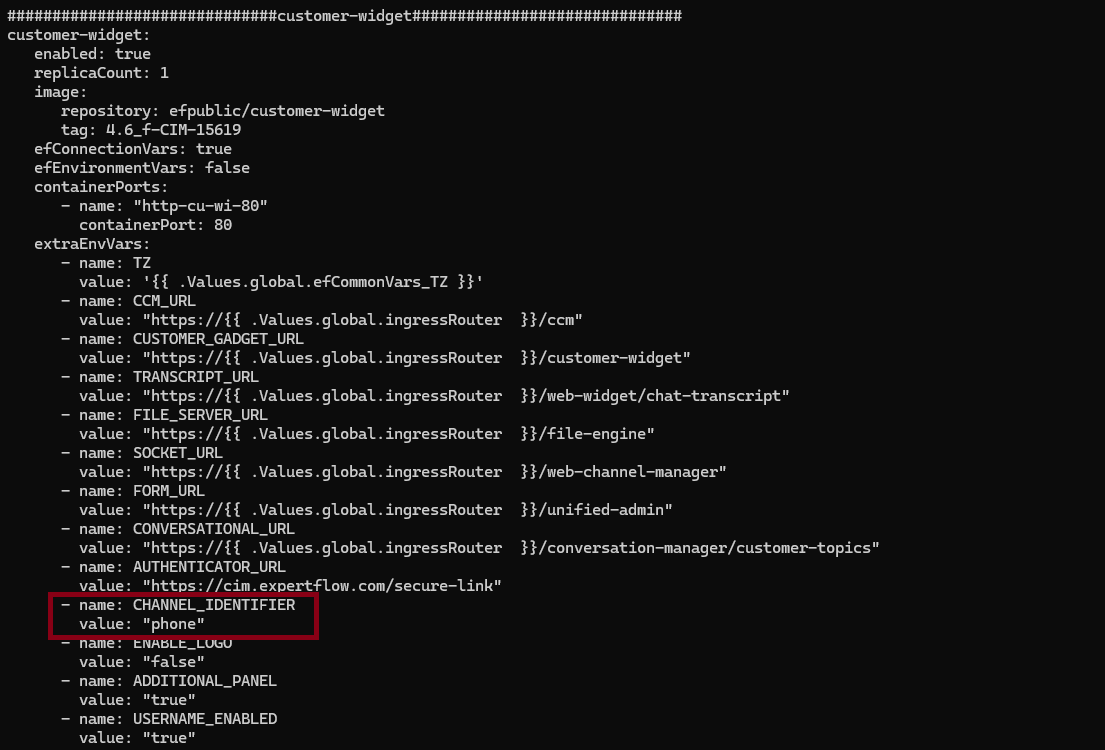
Below is the Screenshot for understanding:
Customer Name in Conversation View
To ensure personalized interactions in the unified agent conversation view, it is mandatory to create a 'Phone' field for customer identification. The key for this field should be 'phone', and it is case-sensitive.
-
While the 'Phone' is compulsory, other fields can be tailored based on business requirements.
-
For instance, the ’First Name' and ‘Last Name' fields, with the key 'first_name’ and 'last_name', are optional. If provided, the customer's name in the conversation view will display both the first name and last name, creating a more comprehensive and personalized engagement.
Example:
-
First Name →
first_name -
Last Name →
last_name
To see a pictorial representation for better understanding click here.
To learn more about the forms and it’s validation , please refer to this guide.
Web Published Forms