
Create and Assign Routing Attributes
Agent attributes are created and assigned to agents to ensure that the customers will always get the right agent.
See Precision Routing to learn more about Agent Attributes.
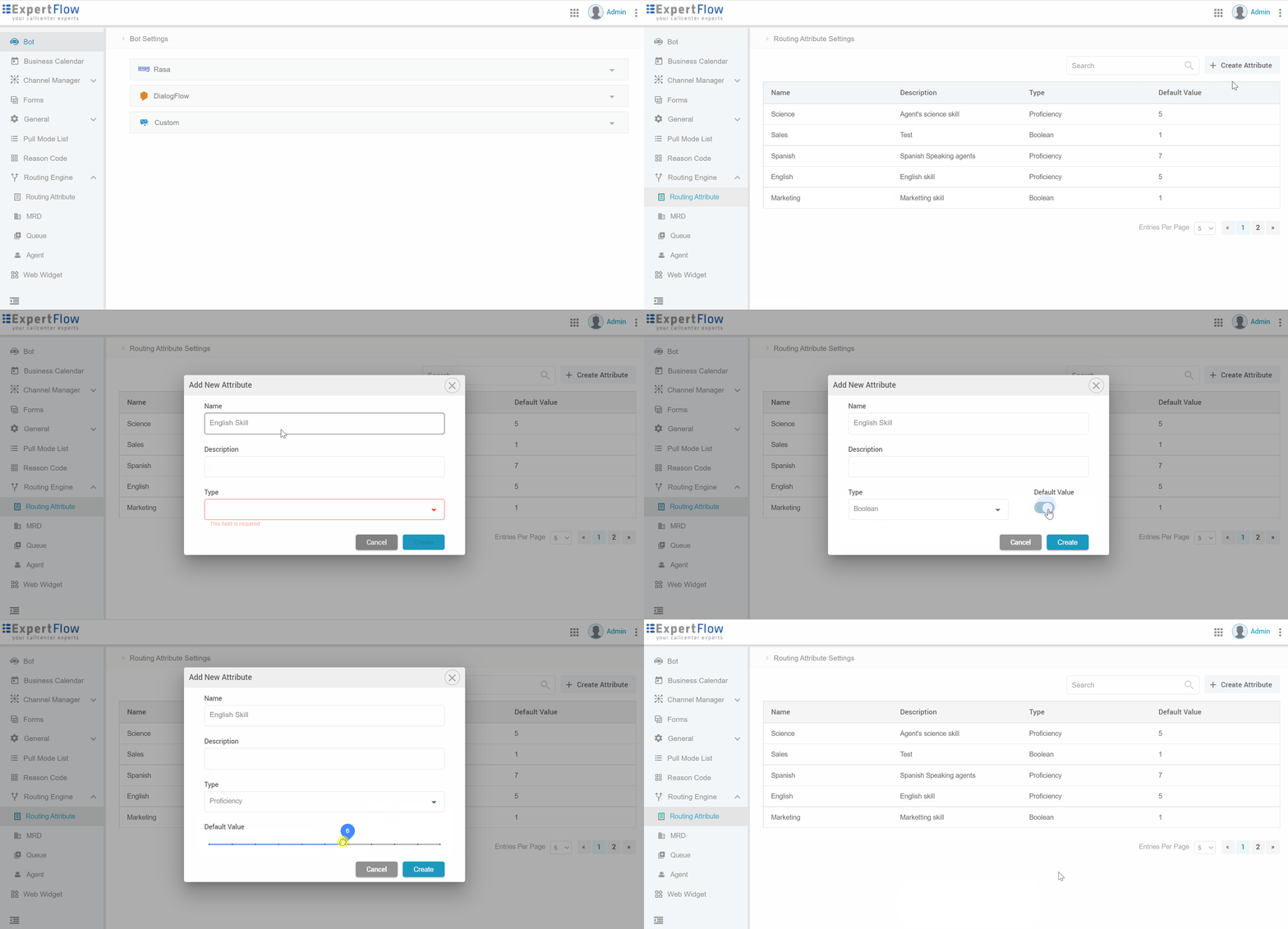
Go to Routing Engine -> Routing Attributes and create a new attribute by clicking on the Create Attribute button, using the following table:
|
Field |
Description |
|---|---|
|
Name |
Give a name to the Routing Attribute. |
|
Description |
Provide an optional description here. |
|
Type |
Choose from one of the following types:
|
|
Default Value |
Specify a default value based on the type of attribute. This default value is automatically assigned to an agent when a Routing Attribute is assigned to the agent. You can overwrite the default value at the time of attribute assignment. |
Assign Attributes to Agents
On the Routing Engine -> Agents Attributes page, all Keycloak users having specified Keycloak role(s) are shown. By default, it contains the list of agents and supervisors with Keycloak roles agent, supervisor.
Tip
See Precision Routing to learn more about how agents or users are synced.
To assign a routing attribute to an agent, hover your mouse to an agent record and click the + icon to assign or remove an attribute to/from the selected agent.
Click the contact picture against an agent record on the Agents List to view the agent's profile in a read-only mode; this information is fetched from Keycloak User Profile since users are created and managed from within Keycloak.
A Routing Attribute assigned to an agent cannot be deleted.
Create and Assign Queues
Expand the Routing Engine menu on the left and click Queues.
Tip
Learn more about Queues on Precision Routing
On the Queues List, add a new queue with the basic queue details using the following table:
|
Field |
Description |
Required |
|---|---|---|
|
Queue Name |
Specify a queue name. |
yES |
|
Associated MRD |
Choose an MRD you created in step 2. |
Yes |
|
Agent Response Time (in seconds) |
This is when the agent has to respond to a customer message. |
No |
|
Service Level Type |
Type one of the following numbers in the field:
See more details about these in Key Reporting Concepts |
Yes |
|
Service Level Threshold |
This is the service level threshold in seconds. This determines the time until when all requests being enqueued should ideally be picked up from the queue and routed to agents to be answered. This is set by the business as per their business policies and SLA reporting requirements. If a request gets answered within this time, it is considered to be answered within SL. See more on Key Reporting Concepts |
Yes |
|
EWT (Estimate Wait Time) Min Value |
This is the minimum estimated wait time in seconds that will be displayed to the customer if the estimated wait time is below this number. The minimum value should be lesser than the maximum value.
|
No |
|
EWT Max Value (Estimated Wait Time ) |
This is the maximum estimated wait time in seconds that will be displayed to the customer if the estimated wait time is more than this number. The maximum value should be greater than the minimum value.
|
No |
The EWT is currently not visible to customers, neither in web chat widget nor for any other channel. The customer-side implementation for EWT is still pending.
Add Steps to the Queue
Once a queue is added with the above settings, the next step is to add queue steps to the queue.
Tip
Learn more about Steps, Expressions, and Terms on Precision Routing
On the Queues list, click the Add Step option against the desired queue to start adding steps in the queue using the following table:
|
Field |
Description |
|---|---|
|
Step Timeout |
This is the timeout for this step. It determines the time the system waits before jumping to the next step when no agent is found. |
|
Expression |
Add a logical expression for the Routing Engine to evaluate and identify an agent matching the criteria. Add the small + icon to add another term in the expression. Click Add Expression to add another expression to the same step. For instance, the expressions added in the illustration below states: Any agent having |
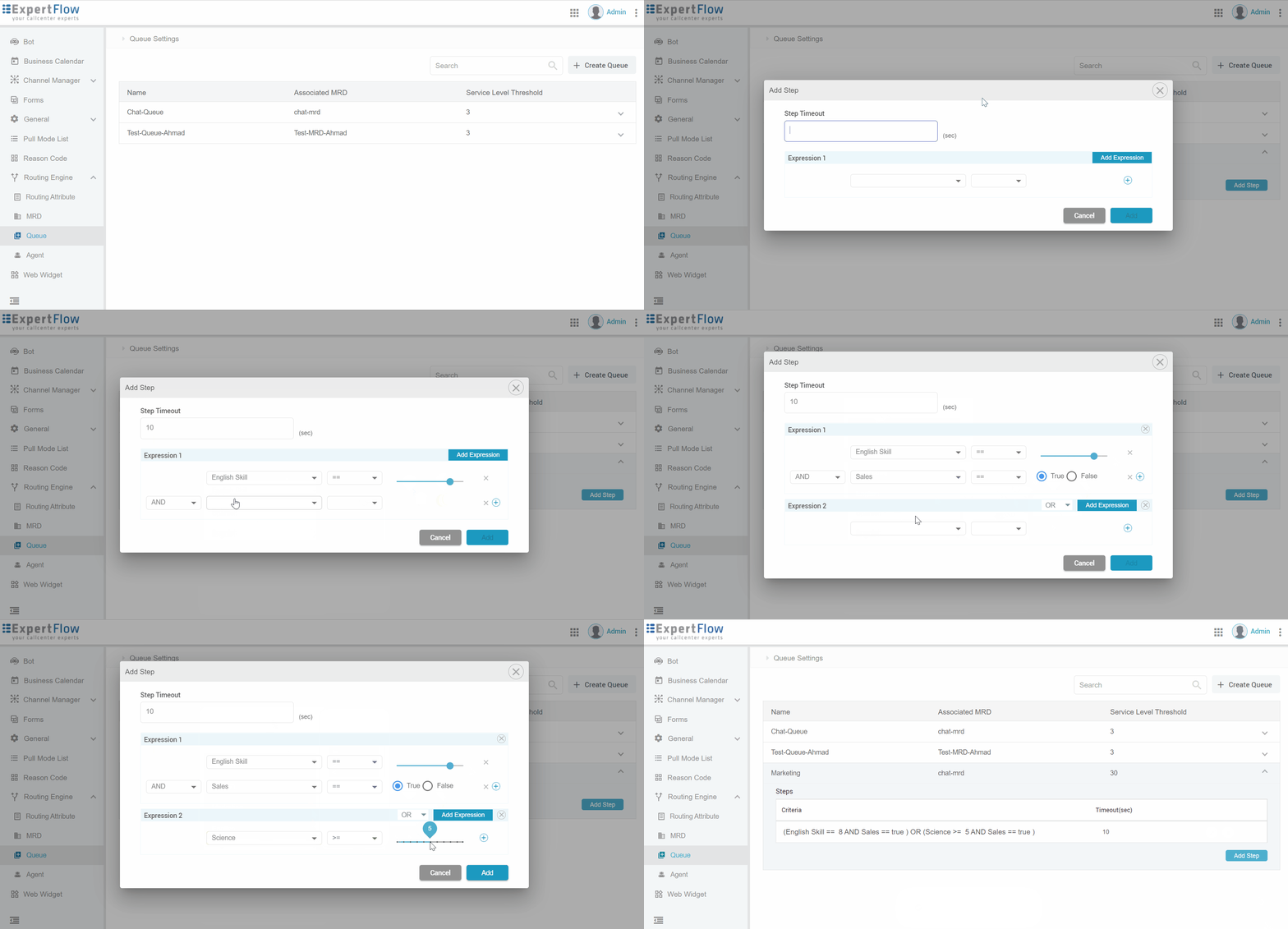
To continue adding more queue steps, go back to the Queues List, expand the desired queue, and click Add Step.
If the Routing Engine finds an agent matching to the criteria as a result of the first queue step, it won't jump to evaluate the next steps. Therefore, at the point where it gets an agent available matching the criteria, it stops jumping to the next steps.
-
If there're some conversations enqueued to or active against a queue, such a queue cannot be deleted. The reason is, even if the chat request is routed to an agent, there are scenarios where it can be re-routed such as in the case of RONA. So unless all requests are closed, the queue cannot be deleted.
-
A queue cannot be deleted if it is associated with a channel.