
|
Summary |
These are the dashboards where conversation details are listed. Each dashboard is refreshed in 10 seconds |
|---|
The application offers the following three types of detailed views:
Queued Conversations Detail
This dashboard lists all conversations that are currently enqueued to a queue.
To see the desired conversation on this dashboard, use the following filters in the given sequence:
-
Team - Choose one team from the dropdown to see the relevant queues in the Queues dropdown. In case if you are an agent , you will only be able to see the name of the team that you are a part of.
-
Queue(s) - Based on the Team's selection, the Queues dropdown populates the queue(s) that are associated with the specified Team. Once the queue is selected, the data on the dashboard is filtered based on the selected queue. The dashboard will display data from all queues by default when a supervisor selects any team from the teams dropdown.
The following details of a conversation are available on the dashboard:
|
Field |
Description |
|---|---|
|
Customer |
Name (if identified), along with the customer channel identifier and a channel type icon to identify from which channel the customer initiated the conversation. |
|
Waiting Since |
This is the time since this conversation is enqueued. This time is shown in terms of minutes, such as <x> minutes ago. |
|
Queue Name |
The name of the queue where the conversation is enqueued |
You can change the queue from the Queues filter drop-down to see enqueued conversations on the specified queue.

-
The filter of all queues shows all queues that are part of the specified team.
-
Agents do not have access to this dashboard.
-
Adding or removing agent attributes that affect queue associations will take effect upon the agent's next login, and not in real-time on dashboards.
Ongoing Conversations Detail
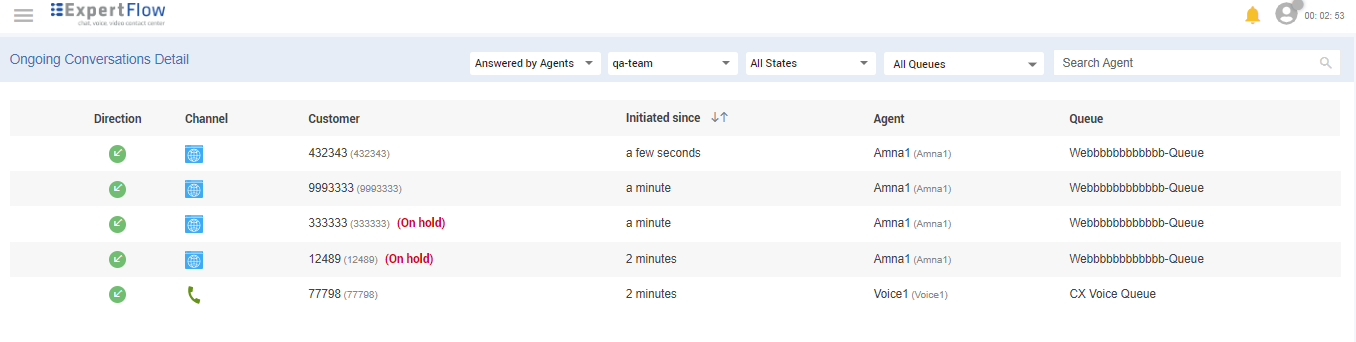
This dashboard lists all conversations that are currently active with agents, supervisors, or bots, with the details such as on which queue they were landed, the name and channel identifier of the customer, and the time since they are active.
To see the desired conversations on this dashboard, use the following filters in the given sequence:
-
Answered by Agents or Bots - To see active conversations with bots, switch the value in the first tab of the top row, and set the filter to Answered by Bots. By default, it is set to Answered by Agents, which shows the active conversations that are currently active with agents/supervisors.
-
Team - Choose one team from the drop-down to see the relevant queues in the Queues drop-down. This allows a user to view active conversations in a queue.
-
Queues (s) - Based on the Team's selection, the Queues drop-down populates the queue(s) that are associated with the specified Team. Once the queue is selected, the data on the dashboard is filtered based on the selected queue. Select one or multiple queues to see the results.
The following details of a conversation are available on this dashboard:
|
Field |
Description |
|---|---|
|
Direction |
This shows the direction of the conversation, i.e. if it is Inbound or Outbound. |
|
Channel |
This is the channel through which the customer has initiated the conversation. For instance, WhatsApp, Facebook, Webchat. |
|
Customer |
Name (if identified) along with the channel identity (for instance, WhatsApp number, Facebook name, Email) |
|
Active Since |
This is the time since this conversation became active. This time is shown in terms of minutes, such as <x> minutes ago. |
|
Agent |
This shows the Agent's name along with the user name who handled the conversation. |
|
Queue Name |
The name of the queue on which the conversation is enqueued |
As a primary supervisor, their default view includes all agents within their team.
As a secondary supervisor, their default view will include only the agents assigned to them within the team. Additionally, both (primary and secondary supervisor) have access to a filter enabling them to view agents managed by other secondary supervisors. This filter will dynamically load agents based on the selected secondary supervisor. Additionally, there will be an option labeled "All agents," enabling them to view details of all agents within the team.
-
When a team and a specific supervisor are selected, only chats that are active with agents assigned to that supervisor will be displayed.
-
When a team and the "all supervisors" option are selected, all chats that are active with agents and supervisors for that team will be shown.
-
If the supervisor selects all supervisors from the filter, conversations related to "agents + secondary supervisor + primary supervisor" will be listed on the dashboard. A supervisor can now also see their own ongoing conversations in the dashboard.
For conversations that are put on hold, a user can also see them with an on-hold status on the Ongoing Conversations Detail dashboard.
-
A conversation might appear on Ongoing Conversations Detail → Answered by Bots and Queued Conversations Detail at the same time. This is when it is still with the bot and not yet routed to an available agent from the queue. However, as soon as it is routed to an agent, it disappears from the Queued Conversations Detail dashboard.
-
In case of an active conversation with any agent of the queue who is not part of the supervisor's team, the conversation will not be visible to the supervisor on the dashboard. It will only be seen by the person who is the supervisor of that agent.
-
A conversation with multiple agents from different queues will be shown as two rows on the Ongoing Conversations Detail → Answered by Agents dashboard. However, in case of an active conversation with multiple agents from the same queue, this is shown as one conversation on the dashboard.
-
If a conversation is blindly transferred to an agent (or directly transferred to a named agent), it will disappear from the Ongoing Conversations Detail dashboard.
-
When Agent1 places a consult request and Agent2 accepts, the "Ongoing Conversations Detail" dashboard does not display A2's name for the supervisor. It appears as though only one agent is in the conversation.
-
After a consult transfer is completed and Agent2 accepts the call.The conversation between A2 and the customer does not appear on the "Ongoing Conversations Detail" dashboard.
-
The Outbound conversation does not appear in the “Ongoing Conversation Detail”.
-
Agents cannot access this dashboard.
Only inbound conversations are shown in the Ongoing Conversations Detail dashboard.
My Past Conversations
This dashboard is available in CX 4.10.5 and later releases on CX‑5.1 and onwards.
This dashboard lists an agent’s recently handled conversations within a selected time period (for example, the last 24 hours), so they can quickly reopen past interactions for follow-up, deferred replies, and timely customer re‑engagement on email and digital channels.
This improves agent productivity, supports asynchronous channels such as email where responses may arrive later, and enables timely customer re‑engagement based on recent interaction history.
The dashboard shows each agent’s past conversations with key details (customer, channel, conversation end time) and lets them reopen any conversation with one click to continue the exchange. Business teams benefit from faster, more consistent follow‑ups on email and digital channels, better handling of deferred replies, and improved agent productivity through time and channel filters, as well as name search to locate specific recent cases.
Agents can view only their own previously handled conversations on this dashboard.
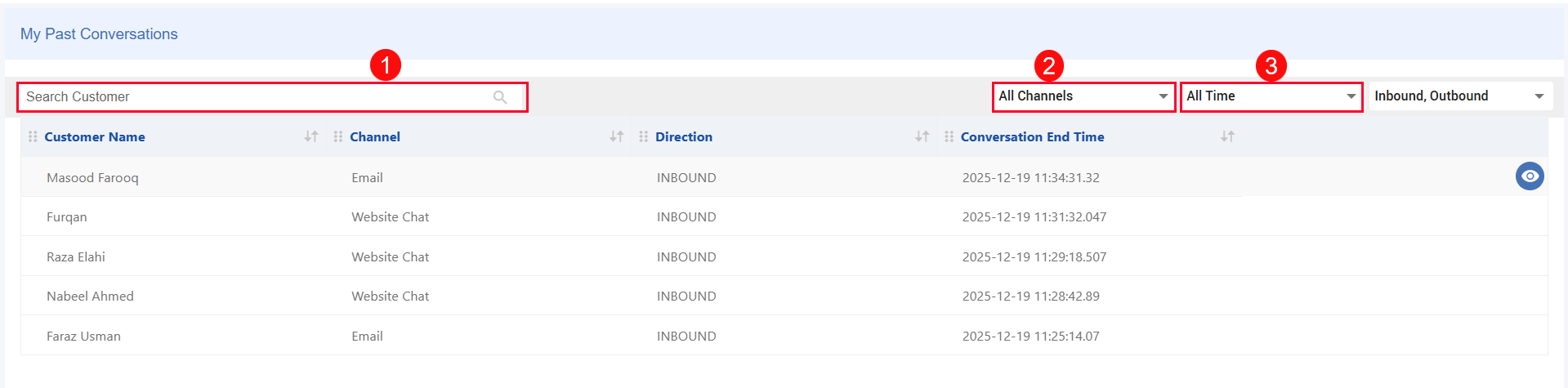
The details of dashboard columns are as follows:
|
Field |
Description |
|---|---|
|
Customer name |
The customer you were talking to. |
|
Channel |
The communication channel (for example, Email, Chat, WhatsApp). |
|
Conversation end time |
When the conversation was completed or closed. |
|
Action (Open conversation) |
Opens the interaction history in conversation view and lets you send a new message if a follow‑up is needed. For details on initiating an outbound conversation, see Handle Email Interactions> Initiate Outbound Email Communication. |
Filters and search
To see the desired conversation on this dashboard, use the following filters:
|
Filter / Search |
Description |
|---|---|
|
Search by customer name |
Type the customer’s name into the search bar to quickly find their conversation history, as shown in [1] |
|
Channel filter |
Shows conversations from specific channels (for example, only Email). You can select one or multiple channels at the same time, as shown in [2] |
|
Time filter |
By default, shows conversations from the last 24 hours. You can change this to Last 3 days or Last 7 days, as shown in [3] |
Sorting and pagination
|
Behavior |
Description |
|---|---|
|
Sorting |
Conversations are sorted by most recent activity, with the latest interactions shown first. |
|
Page size |
The dashboard displays 25 conversations per page. |
|
Pagination controls |
Use pagination controls to navigate to older conversations. |
Available Agents Detail
This dashboard displays a list of all team agents, including the number of active conversations with each agent and the current state of each agent in each MRD. While viewing the list of active agents with a count of active conversations, a supervisor can also change an agent's state based on the agent's current state. This allows supervisors to manage long-idle agents and maintain workflow efficiency.
The supervisor can only change the global state of the agent and not its MRD state.
To do so, supervisors click on the "Change State" dropdown against the desired agent whose state needs to be changed.
The available changes for the agent's global states are:
-
From Not Ready to Ready
-
From any other state to Log Out: To see how to forcefully log out an agent, see Force Logout Agent

Available Agents Detail
To see the desired conversations on this dashboard, use the following filters:
-
Search Agent - This filter allows the supervisor to search for a specific agent of her team.
-
Team - Choose one team from the drop-down to see the active agent's details and the current state of agents in each MRD.
The following details are available on the dashboard.
|
Field |
Description |
|---|---|
|
Agent (s) |
shows the name of an agent along with the current state Ready, Not Ready |
|
Active Conversation |
shows the number of active conversations going on with the agent for the selected queue. |
|
MRD State |
displays the current state of the agent in a particular MRD Colored circles on the upper right corner of the dashboard represent the MRD state. For more details of MRD State Transitions, see < Agent State -> Change MRD States |
Agents can also access this dashboard. When logged in as an agent, they can view their team’s states only.
As a primary supervisor, their default view includes all agents within their team.
As a secondary supervisor, their default view will include only the agents assigned to them within the team. Additionally, both (primary and secondary supervisor) have access to a filter enabling them to view agents managed by other secondary supervisors. This filter will dynamically load agents based on the selected secondary supervisor. Additionally, there will be an option labeled "All agents," enabling them to view details of all agents within the team.
-
When a team and a specific supervisor are selected, only agents assigned to that supervisor will be displayed.
-
When a team and the "all supervisors" option are selected, all agents and supervisors for that team will be shown.
Limitations
-
Adding or removing agents from a team in Keycloak will take effect upon the agent's next login, not in real-time on dashboards.
-
Currently, there is no visibility of the agent’s MRD state when it is in the Reserved state. As a result, the Logout option will still appear even when an agent is Reserved for a task. This limitation will be resolved once the Reserved state for MRD is introduced in the system.
Saving Dashboard Filters
Changing the filter in any of the dashboards in Agent Desk applies to all dashboards.
While viewing the dashboards, the filters saved on one dashboard are automatically saved and remain valid for the other detailed dashboards as well.
For instance, if you select Team A and Queue B on the “Queued Conversations” dashboard to view the queued conversations in Queue B, the filter will be saved and applied to the other dashboards as well. If you then navigate to the “Ongoing Conversations” dashboard or “Active Agents Detail” dashboard, the data in the dashboards is filtered based on the filter saved on the “Queued Conversations” dashboard.
Moreover, if a filter is changed on any dashboard, the changes will be saved and applied to all the dashboards.
For Summary Dashboards, the filters saved on one Agent Desk dashboard are also applicable to the Summary Dashboard.
-
The saved filters (Teams, Queues) will be stored under the browser cache.
-
If "All Teams" is selected in the "Active Agents Detail" dashboard, this filter won't be saved and won’t be applied to the rest of the dashboards.
-
However, if the Teams filter is changed later in another dashboard, the same filter will also apply to the "Active Agents Detail" dashboard. From the saved filters, only the filter that applies to a dashboard is applied to the dashboard.
-
If dashboards or saved filters get stuck after repeated refreshes, waiting for a few seconds and then refreshing again will resolve the issue.