This document explains how the Customer Widget enables customers to start and manage web chat conversations with a contact center, and what configuration options are available to admin. More than that what capabilities the widget has in itself.
This document explains the key features and capabilities of the Customer Widget and how administrators can configure them using Unified Admin to deliver an effective and engaging customer experience.
Capabilities
Responsive Customer widget Sizing
The customer widget adapts to different website sizes, whether mobile or web applications. Customers can adjust the widget’s length and dimensions when embedding it into their products.
Display Business Hours
You can configure the contact center’s working hours from Unified Admin and get them displayed on the widget to start a new conversation.
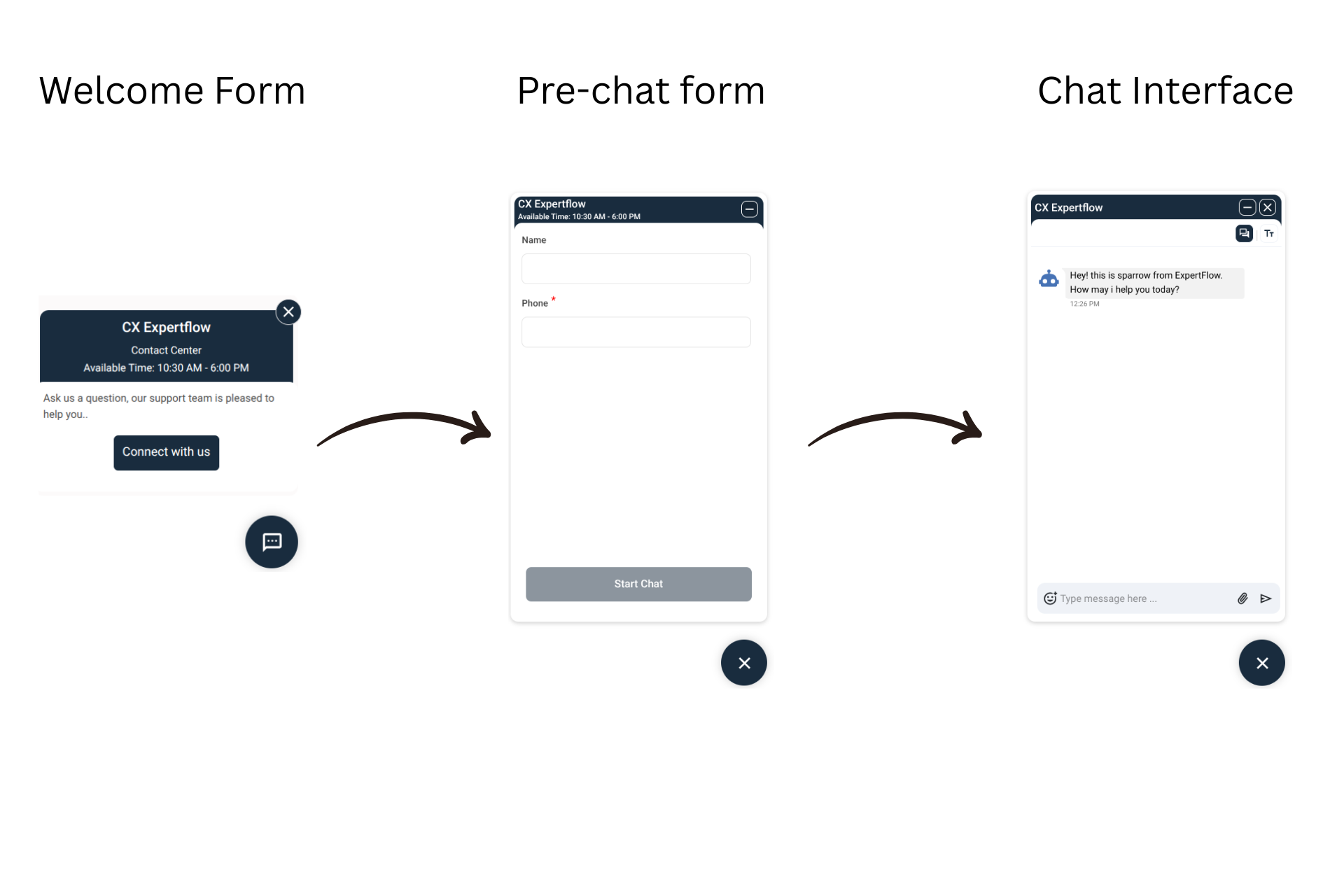
Click the launcher icon to start a new conversation. You’ll see the contact center status (i.e. opening/closing hours) on the entry screen.
Click the “Connect with us” button and enter your details in the Pre-conversation form that opens up. This makes sure to deliver a personalized experience based on your CX Interaction Profile.
Tip: Define business hours events in the Welcome Form to communicate support availability.
Please referBusiness Calendars
After submitting the dynamic pre-chat form, the customer receives a welcome message from the bot, through which they can either get the desired information or choose to connect with a live agent for further assistance.
Dynamic Pre-Chat Form – Collect Relevant Customer Data
Administrators can create dynamic pre-chat forms using the Unified Admin Form Component to collect essential customer information before a chat begins.
Important: The must-have field in the pre-chat form depends on the env variable named CHANNEL_IDENTIFIER of the web widget configurations.
If CHANNEL_IDENTIFIER is set to phone → The form must include a compulsory “Phone” field.
If CHANNEL_IDENTIFIER is set to email → The form must include a compulsory “Email” field.
That field is required for customer identification in CX Customers. Without them, customers cannot initiate a chat. Other form fields can be customized based on business requirements.
Field Mapping
The Phone or Email field is automatically mapped to the corresponding Customer Schema attribute.
By configuring the pre-chat form correctly, administrators can ensure smooth customer identification, reduce friction during chat initiation, and provide agents with the necessary context for faster, personalized support.
-
Pre-chat form as a whole can be customized as desired and can include a number of fields.
Please refer to the Customer Widget Admin Guide for more details.
Dynamic search in the dropdown field of the prechat form
The Customer widget enables searching for customers in the configured dropdown fields, for example by selecting a city from a City dropdown.
.png?cb=893ef3221f69293c93aa8a4b73d3cf77)
Messaging Features – Streamlined, Interactive Communication
Plain Text Messaging
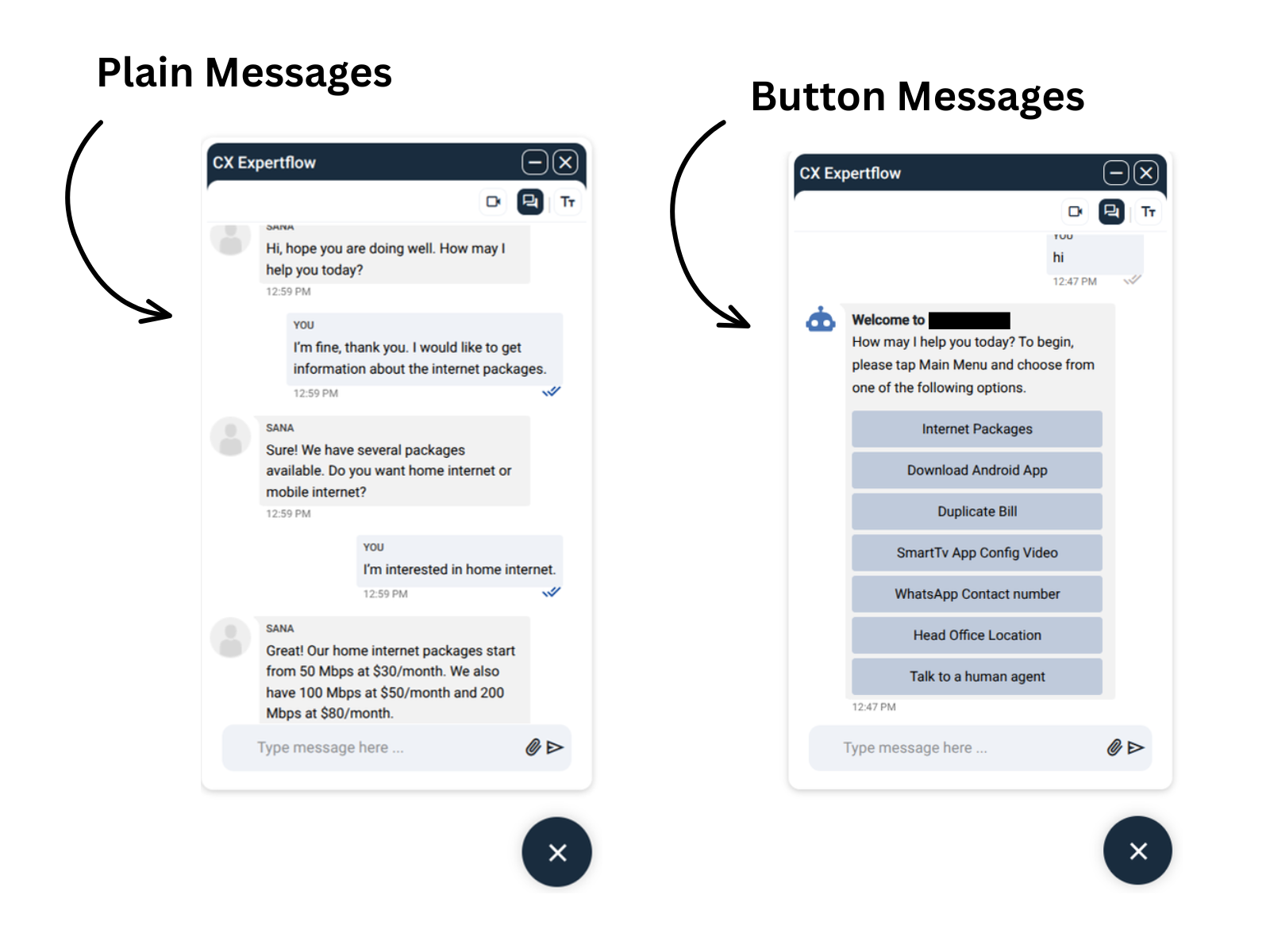
Customers can send and receive plain text messages (up to 4096 characters).
The composer expands automatically for multi-line messages and turns red when the character limit is reached.
Button Messages
Customizable buttons delivered from the BOT streamline interactions and guide customers to relevant actions.
Learn more on Button Message.
Crousal Message
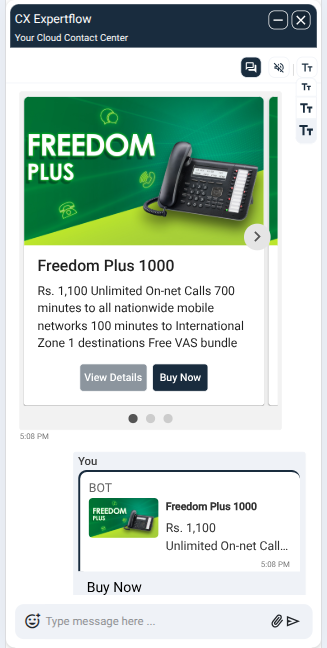
Any third-party bot like Rasa or Teneo can send these messages, as long as they follow the JSON structure defined here.
When Customer click the action button, Customer widget send the action to the component, like Rasa, as a postback for external components to trigger respective workflow.
File & Multimedia Sharing
To send/receive files, enable file transfer from the unified admin.
Customers can exchange multimedia files including:
-
Images: png, jpg, jpeg
-
Documents: pdf, docx, pptx, xlsx, txt, rtf
-
Audio: mp3
-
Video: mp4
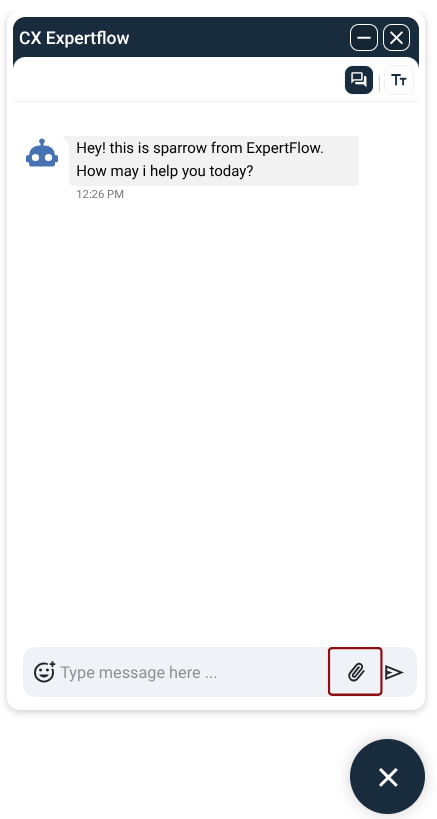
Image preview
Pictures are now clickable when a customer or agent sends one in the conversation. Customers can click to preview the image, with a close button at the top right to exit the preview.

Customer Sentiment & Engagement
The Emoji Picker allows customers to express emotions or send quick reactions during a chat conversation. By using emojis, customers can communicate their mood or satisfaction instantly, helping agents better understand customer sentiment and respond appropriately in real time.
Administrators can enable or disable this feature from Customer Widget Settings in Unified Admin, aligning it with business communication policies while improving personalized and engaging customer interactions.
.png?cb=a0f7cf07fa27051fa0636df4f2ff38a3)
Dynamic Links
The Web Widget supports dynamic links which can be enabled / disabled via Unified Admin → Channel → Web Widget .
Businesses can use this feature to send and receive links between customers and agents.
.png?cb=826e9ba5dc585336ac3c0c0a1e1d0b81)
Adaptive Message Composer Bar
-
The default height of the message composer bar in the customer gadget is decreased to one-line text.
-
The height of the message composer bar will increase automatically with multi-line text.
-
The maximum character limit is 500 characters. composer border turns red if the max limit is reached.
.png?cb=1fa6321e392b3612072944eb5b31f93d)
Engagement & Notifications – Stay Connected and Responsive
These notification features ensure customers never miss a message and agents stay responsive, even during high chat volumes, helping maintain consistent SLAs and user engagement.
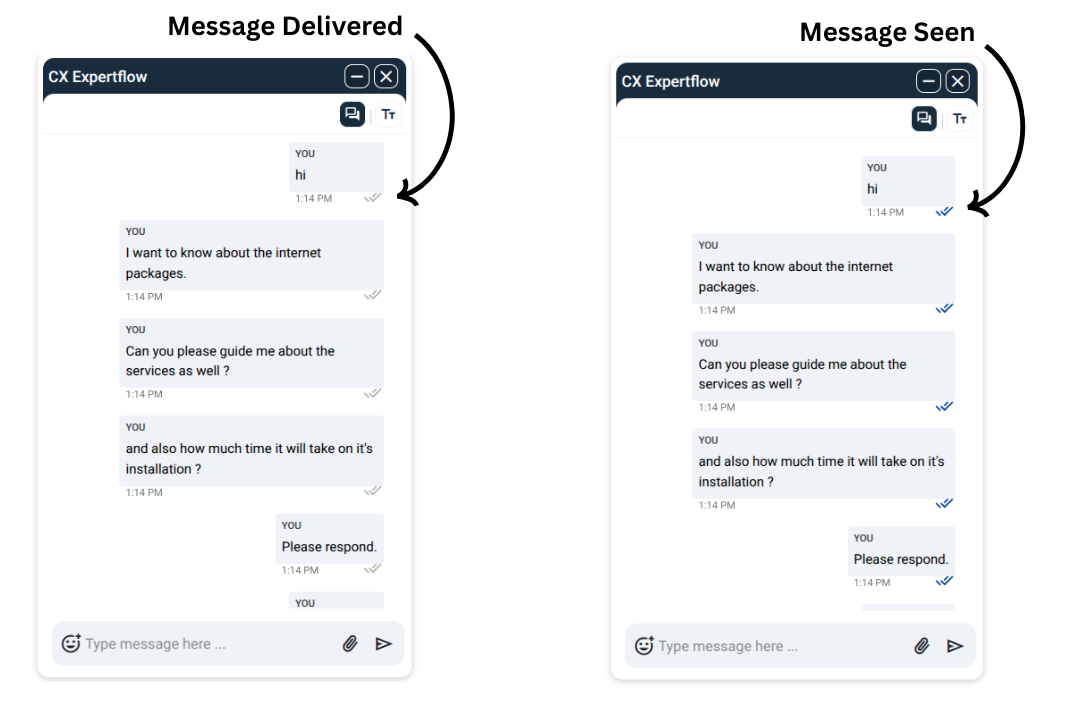
Delivery Status
A delivery notification lets the customers know that their messages have been sent and read by the agent. The customers can see the double ticks as Delivery Notification as soon as the message is delivered and read. The grey double ticks states that the message is delivered to the agent but an agent is yet to seen the message. On the otherhand, the blue double ticks means an agnet has seen your messsage as well.
In case the customer sends a message but it is not delivered due to any reason such as instability of the internet, the message will be shown as blurred.
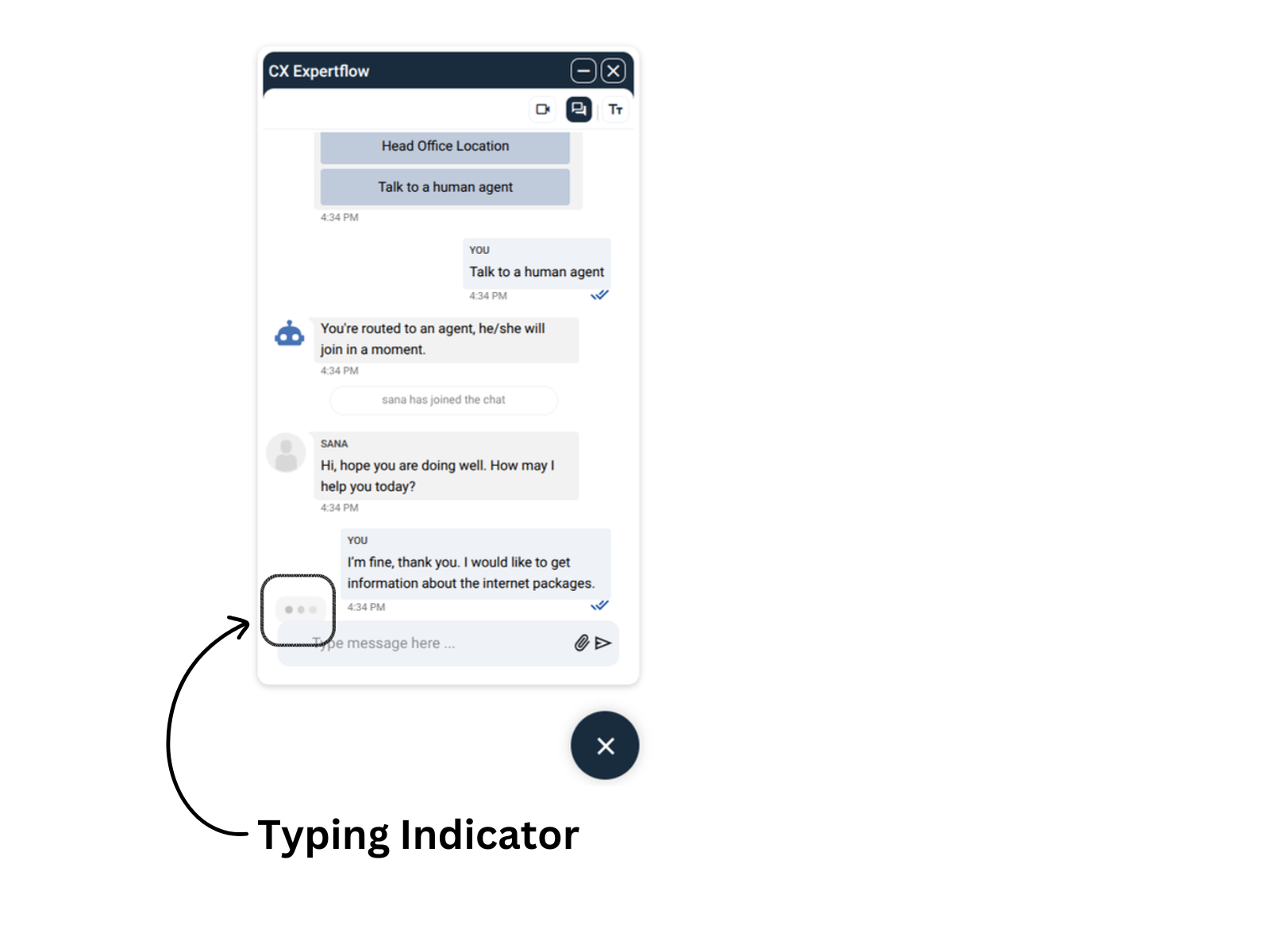
Typing Indicator
A subtle grey indicator shows when the agent is typing, enhancing the sense of real-time interaction.
Browser & Sound Notifications
Toggle sound notifications directly in the chat widget. When chat is active, a button appears to enable or disable sounds.
.png?cb=ff94ae8e20e702beb82fadb5f1fd0964)
By default: Sound notifications are off.
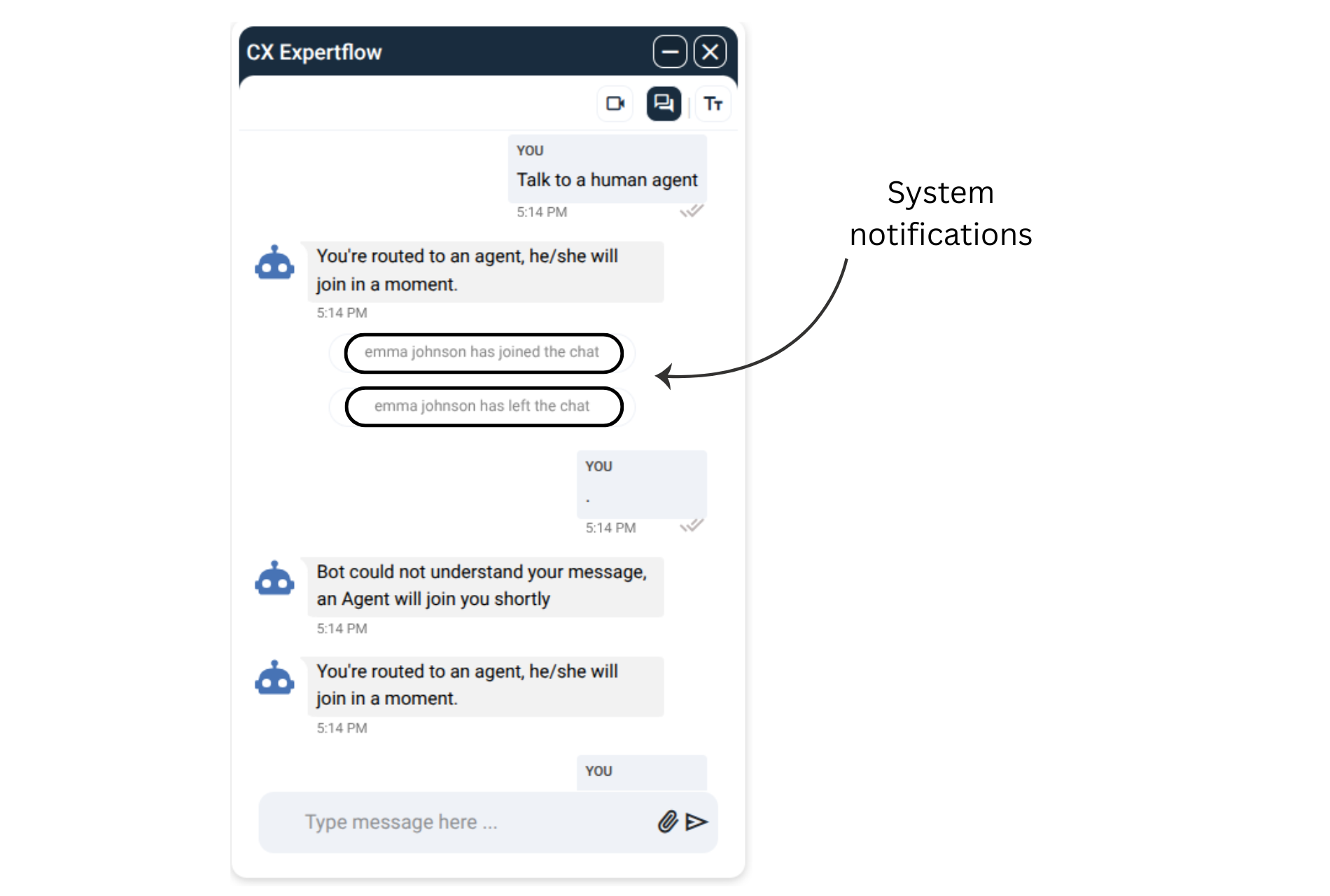
System Notifications
The widget provides automatic system notifications to keep customers informed throughout the interaction, ensuring clarity, transparency, and trust during every chat session.
These notifications help manage customer expectations and improve the overall experience by clearly communicating agent availability and conversation status.
The widget automatically displays system prompts such as:
-
Agent joined the conversation – lets the customer know support is now active.
-
No agents are available – informs customers immediately, reducing frustration and uncertainty.
-
Agent has left the chat – provides clear closure and avoids confusion if the session ends unexpectedly.
Handling network disruption
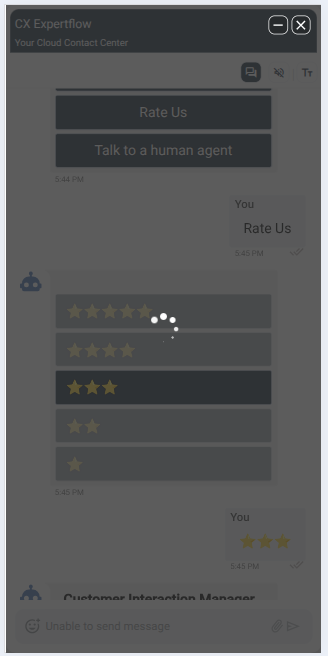
When the network disconnects and the chat stays active in the customer widget, the error screen won't appear immediately. Instead, a loader will show and remain until five reconnect attempts occur. After five attempts, the error screen will appear.
Webhook Notifications
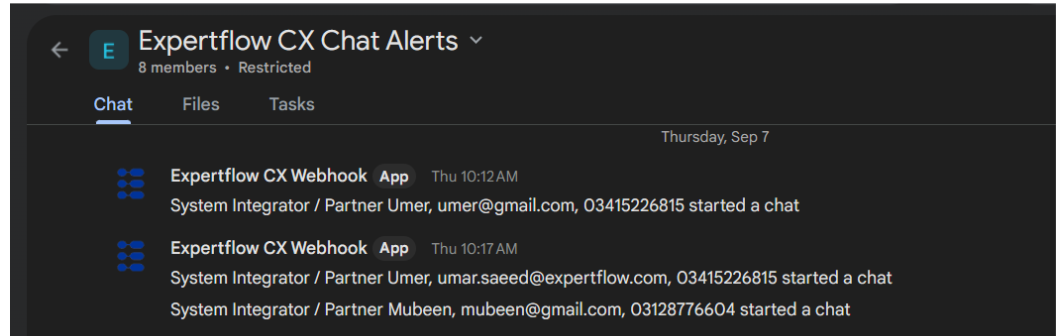
A Webhook notification on Google Workspace provides agents the flexibility to get notified in their Google spaces/groups of recently initiated web chat sessions. This can be enabled / disabled from the widget settings as per the requirement of the business.
Browser and Sound Notifications
This feature enables the customer to receive browser and sound notifications along with a beep for each incoming chat message. The customer will receive notifications if:
-
Inactive browser tab of the web widget.
-
Inactive in the window of the web widget.
-
The browser window is minimized.
The customer will not receive notifications when
-
Blocked/Declined notifications from the website where the web widget is deployed.
-
Active in the browser tab where the web widget is running.
Customization & Accessibility – Tailored for Your Business
Font Resize
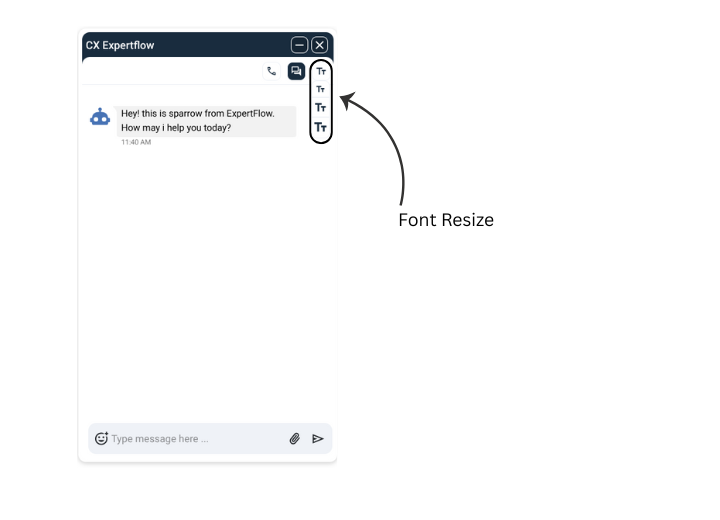
The Web Widget supports three font size options large, medium, and small. Businesses can use any one of their choice by clicking on the drop-down box at the top of the Web Widget, as shown.
This feature is enabled by default and can be enabled / disabled as business requires. The font sizes are 16px, 14px, and 12px respectively.
To fix the font size, deactivate Font Resize from the unified admin.
The list button size now syncs with the font size set in the customer widget. When the customer updates the font size via the top-right dropdown, the list button size updates accordingly.
Send Message Right-to-Left & Left-to-Right
Based on the browser language settings of the customer widget, the direction of the message composer
will be converted as per the selected language direction. If it is an RTL (right-to-left) language such as Arabic, Hebrew, Sorani, Azeri, Aramaic, Persian, Urdu, Kashmiri, Pashto, Sindhi, or Punjabi, the message composer will be right-aligned, while in the case of an LTR (left-to-right) language such as English, the message composer will be left-aligned.
Customizable text for greeting, end chat messages
Customize the text on the Customer Widget for all static UI elements including labels, buttons, greeting messages, error messages, and notifications. These texts can now easily be modified to align with business requirements, providing greater flexibility and customization without requiring code changes.
Note: Only Arabic is the supported RTL language for now. To send the message from Right to Left, choose the language from Default Language
Multilingual Support
Customer widget now supports multilingual and Bulgarian language can be configured in the customer widget section of the unified admin.
All static text (not dynamic content from configuration variables, unified admin, or bot training) updates according to the selected language in unified admin (customer widget).
Call Capabilities – Seamless Escalation Without Interruptions
With integrated audio and video calling, customers can escalate complex cases seamlessly within the same chat window, improving first-contact resolution and customer satisfaction.
Please refer to WebRTC for CX for further information.
Audio Call
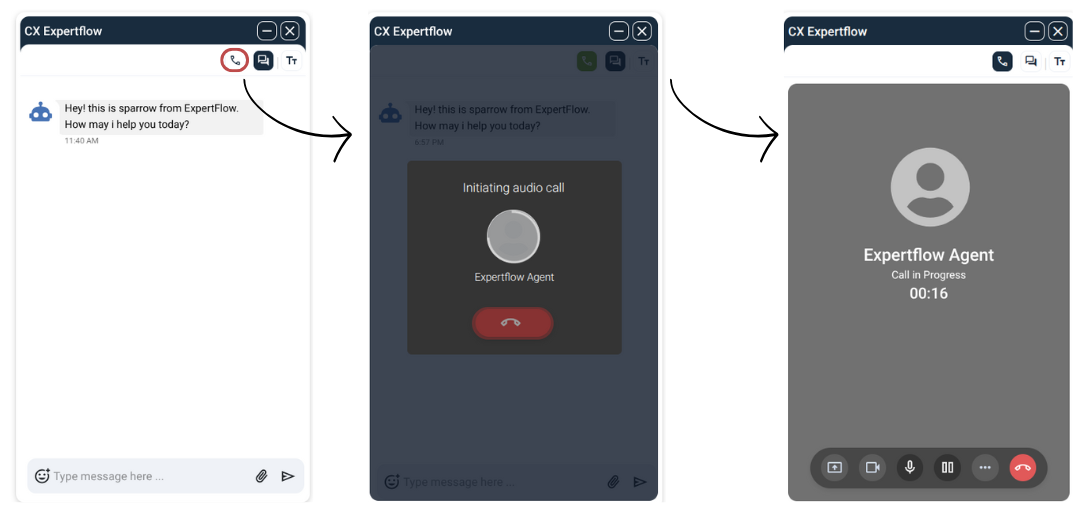
A customer can initiate an audio call at any time during an active conversation by clicking on the phone icon visible on the menu bar.
Call Operational Actions
During an active call, the customer can perform additional actions from the toolbar:
-
Mute/Unmute
-
Hold / Unhold
-
End Call
-
Switch between chat and call.
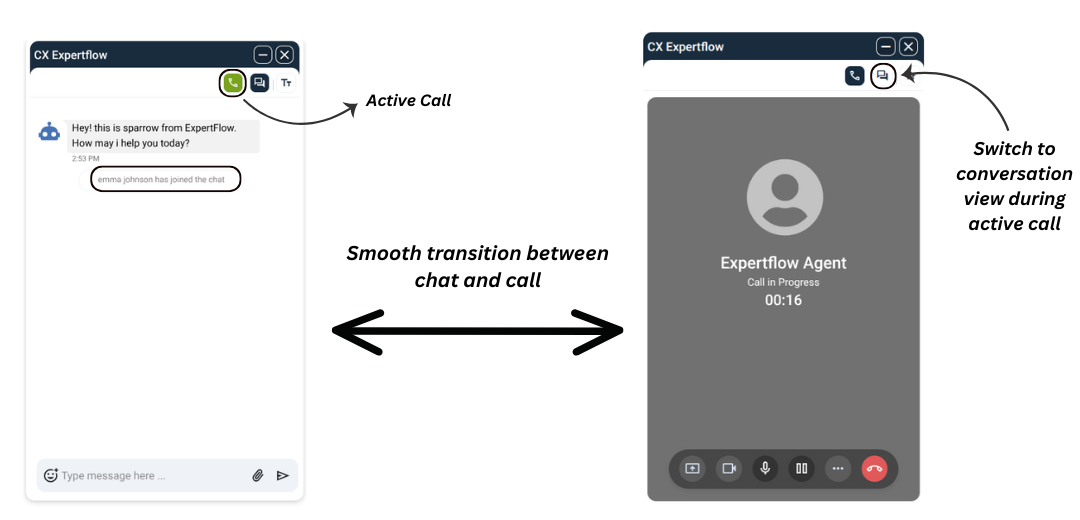
Note: As an administrator, the administrator can enable/disable this feature from unified admin → web widget settings.
Video Call
A customer can initiate a video call at any time during an active conversation by clicking on the video icon visible on the menu bar.
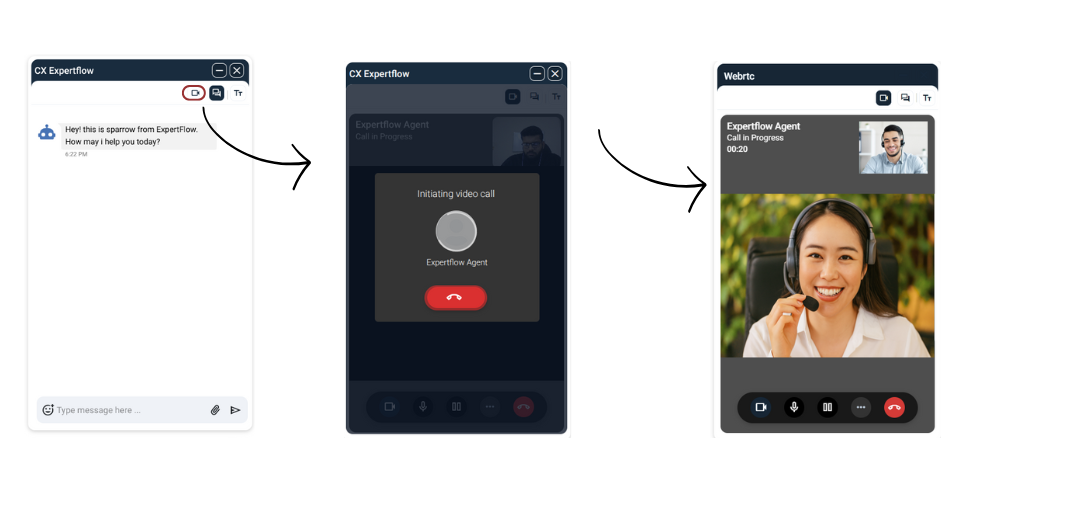
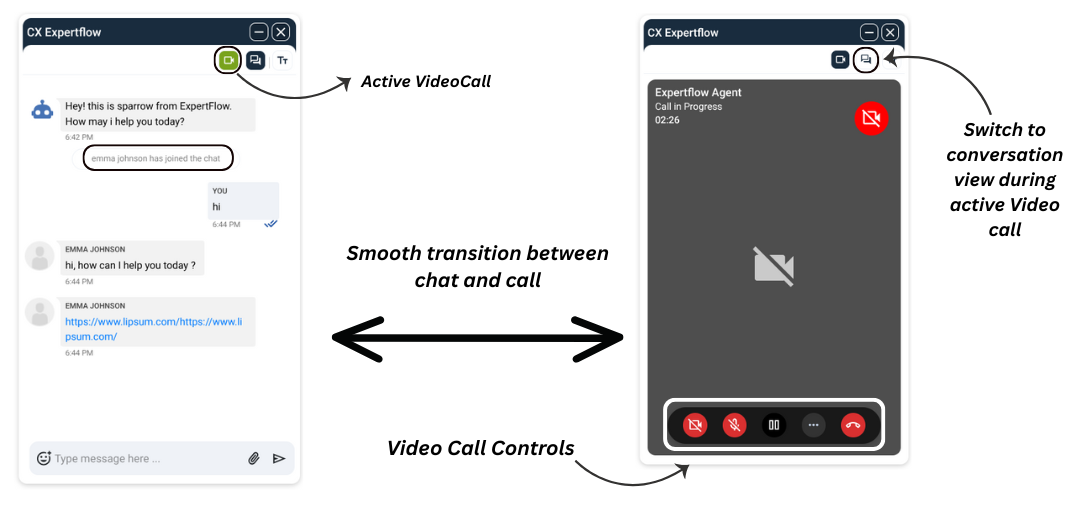
During an active video call the following actions can be performed,
2. Turn the camera on/off
-
Mute/ Unmute
-
Hold / Unhold
-
End Call
WebRTC Video Call via Secure Link (Initiated from Agent Desk)
During an active conversation, the agent can generate a secure video link to be shared with the customer to initiate a video call.
The customer is asked to provide a unique authentication code shared with the link, ensuring privacy and security.
7. End of Conversation – Retain Context and Insights
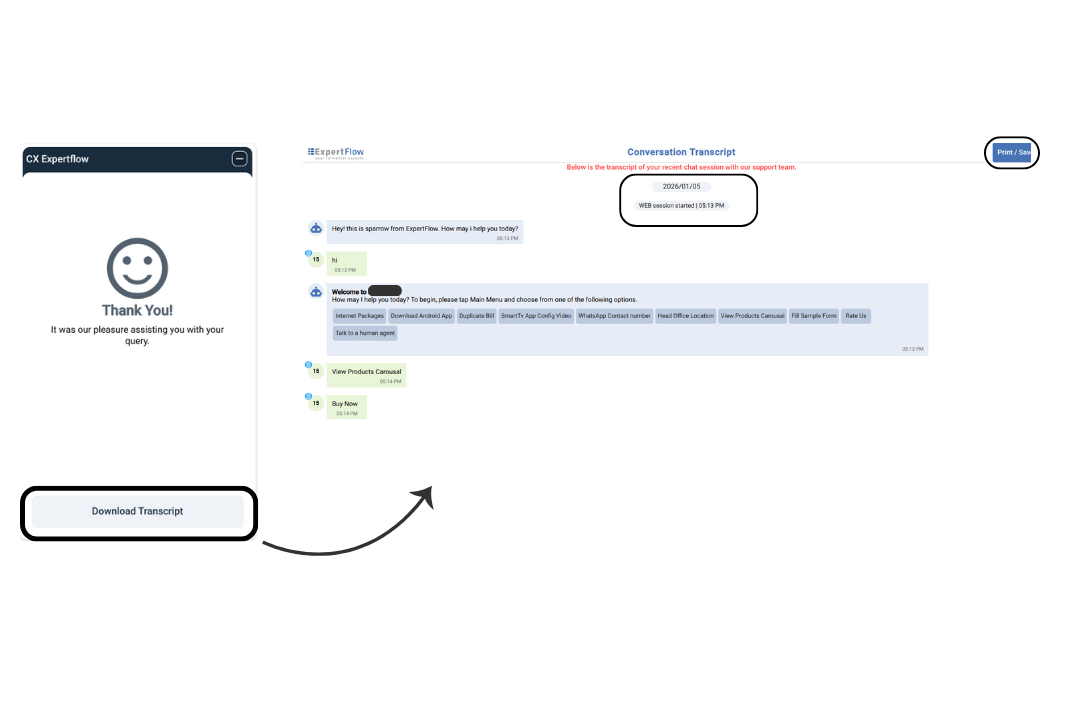
When the customer finishes the chat and the session times out, a Thank You message is displayed with a link to download the transcript.
Widget End Screen timeout
When the chat ends at the customer widget and the thank you screen appears, a configurable timer starts. Once the timer expires, the widget closes automatically
Chat Transcript – Ensuring Accountability and Insights
The Download Chat Transcript feature allows businesses to capture the full conversation at the end of a web chat, providing a complete record for review, quality monitoring, and compliance purposes.
By clicking the Download Transcript button, entire chat history along with notifications and multimedia is visiable on a new tab.
Added a separate download button on the transcript page instead of triggering the download pop-up automatically.
The transcript also respects the browser’s language settings, automatically aligning messages for RTL languages (like Arabic) or LTR languages, ensuring accurate and readable records for every customer interaction.
Benefit of Chat Transcript:
-
Monitor agent performance and interactions
-
Resolve disputes or escalations quickly
-
Maintain consistent records across languages