Expertflow CX supports two-factor authentication (2FA) to provide an additional layer of security when you sign in.
If 2FA is enabled for your account, you will sign in with:
-
Your username and password, and then
-
A one-time password (OTP) or passcode delivered through one of the configured 2FA channels.
Expertflow CX supports the following 2FA channels:
-
Authenticator mobile app (Google Authenticator or Microsoft Authenticator)
-
Email
-
SMS
-
RSA SecurID
How 2FA Works
At a high level, the login flow is:
-
You enter your username and password on the Expertflow CX login screen and click Login.
-
If 2FA is enabled for your account, you are redirected to a second step where you must complete verification using one of the configured 2FA channels.
-
You will be provided with an OTP or passcode from your configured 2FA channel.
-
You enter the OTP or passcode on the 2FA screen.
-
If the OTP or passcode is valid, you are logged in successfully.
The following sections describe the detailed steps for each 2FA channel.
2FA with Google/Microsoft Authenticator
Use this method if your organization has enabled 2FA with the Google Authenticator or Microsoft Authenticator mobile app.
When you are not yet registered for 2FA
|
When you are already registered for 2FA
|
|
|---|---|---|
|
1 |
Enter your username and password on the login screen and click Login. 
|
On the login screen, enter your username and password and click Login. |
|
2 |
The system opens a registration screen that shows:

|
You are redirected to a screen with an OTP input field. 
|
|
3 |
On your mobile device, open the Google Authenticator or Microsoft Authenticator app.
|
Open the Google Authenticator or Microsoft Authenticator app on your device and locate the OTP for your Expertflow CX account.
|
|
4 |
In the app, add a new account and either:

|
|
|
5 |
The app displays a one-time password (OTP) for your account and refreshes the OTP every 30 seconds. |
Enter the currently visible OTP from the app into the OTP field and click Send. |
|
6 |
If the OTP is valid:
|
If the OTP is valid, you are logged in successfully. |
|
7 |
Enter the currently visible OTP from the app into the OTP field on the screen and click Register. |
|
2FA with Email
Use this method if your organization has enabled 2FA via email.
Prerequisite (for administrators):
Make sure the configurations described here are completed before using the Email 2FA solution:
2FA Configuration Guide - Email
When you are not yet registered for 2FA
|
When you are already registered for 2FA
|
|
|---|---|---|
|
1 |
Enter your username and password on the login screen and click Login.
|
Enter your username and password on the login screen and click Login. |
|
2 |
The system opens a registration screen and prompts you to enter your email address for 2FA. 
|
The system opens a 2FA screen with an OTP input field and sends an OTP to your registered email address. |
|
3 |
Enter your email address in the input field and click Next. |
If you do not receive the email, click Resend OTP after at least one minute to request a new OTP. |
|
4 |
The system shows a confirmation dialog that asks you to verify your email address.

|
Enter the OTP from the email into the OTP field and click Submit. |
|
5 |
The system shows an OTP input field on the screen. 
|
When the OTP is valid, the system signs you in. |
|
6 |
If you do not receive the email, click Resend OTP to request another code. The Resend OTP button becomes available after one minute. |
|
|
7 |
Open your email inbox and find the message that contains the OTP 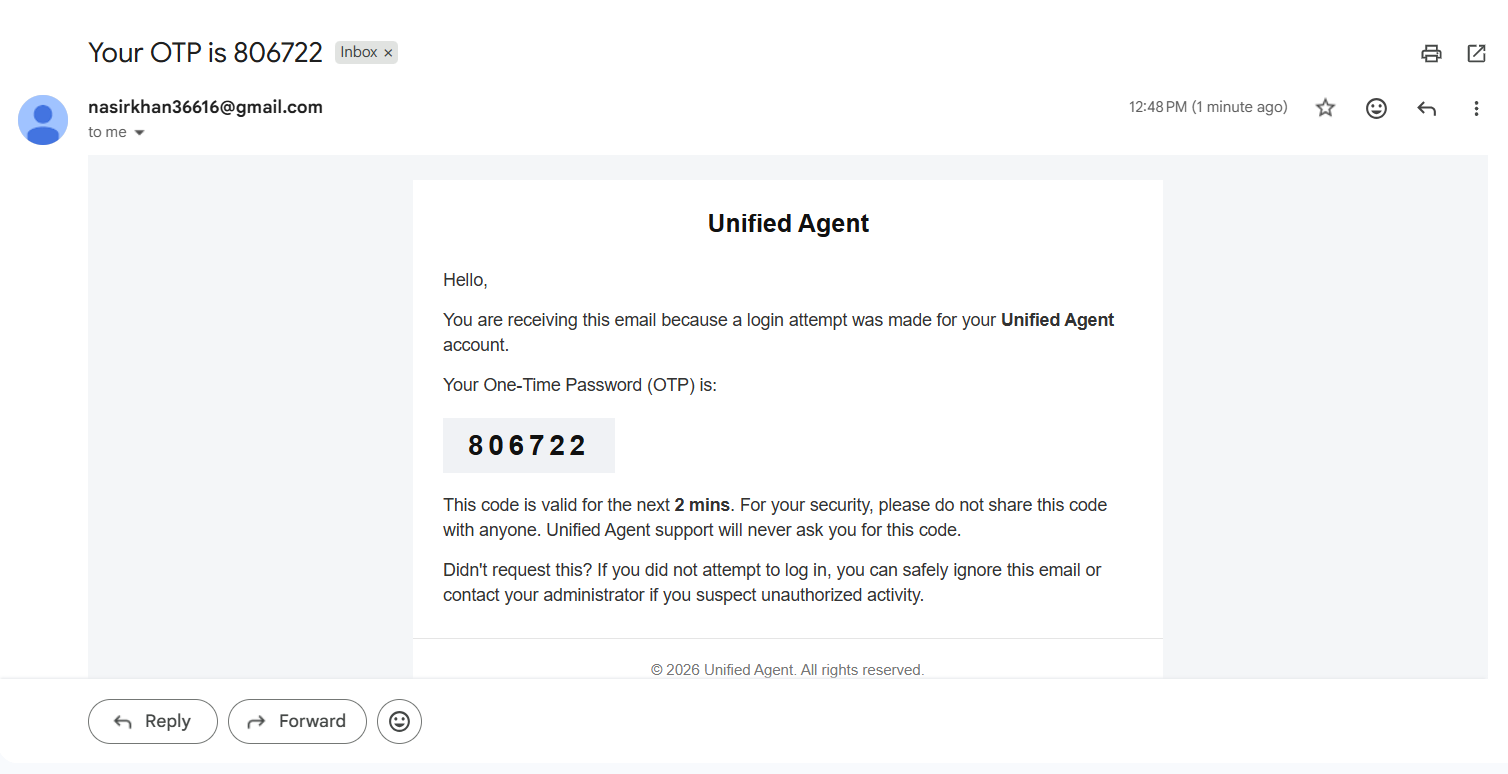
|
|
|
8 |
Enter the OTP from the email into the OTP field and submit it. |
|
|
9 |
When the OTP is valid, the system signs you in and registers your account for 2FA with Email. 
|
|
2FA with SMS
Use this method when your organization enables 2FA via SMS to your mobile phone number.
When you are not yet registered for 2FA
|
When you are already registered for 2FA
|
|
|---|---|---|
|
1 |
On the login screen, enter your username and password and click Login. |
On the login screen, enter your username and password and click Login. |
|
2 |
This redirects you to a registration screen and prompts you to enter your mobile phone number for 2FA. 
|
This redirects you to a screen with an OTP input field. An OTP is sent automatically to your registered phone number via SMS. |
|
3 |
Enter your phone number in the input field and click Register. |
If you do not receive the SMS:
|
|
4 |
A confirmation dialog appears asking you to verify your phone number:

|
Enter the OTP received via SMS in the OTP field and click Send.
|
|
5 |
An OTP input field is displayed on the screen. |
If the OTP is valid, you are logged in successfully. |
|
6 |
If you do not receive the SMS, you can click Resend OTP to request another one.
|
|
|
7 |
Enter the OTP received via SMS in the OTP field and submit. 
|
|
|
8 |
If the OTP is valid:
|
|
2FA with RSA SecurID
-
Unlike the other two 2FA channels, there will be no 2FA registration flow for RSA SecurID. This process will be managed by the Customer/Administrator.
-
If 2FA is enabled on the solution, each user will be required to enter an OTP during login. If a user does not have access to the OTP, they should contact the Administrator.
-
User enters their login credentials on the login screen and clicks “Login”.

-
User will be redirected to another screen where an input field will be shown to user to enter OTP.

-
User will enter a 14 characters passcode in OTP field. First 8 characters will be the PIN setup by the user in SecurID Self Service Console and last 6 characters will be the OTP received on RSA Authenticator App.
-
User will be able to show/hide passcode by clicking on the eye icon.

-
If OTP is valid then user will be successfully logged in.
The following error will be visible if:
-
The OTP is invalid.
-
The configurations are invalid.
-
There is an issue with the RSA server.