
This guide helps you connect your Google Play Store app with the Official Google Play Developer API (Android Publisher API. It is intended for administrators responsible for setting up Google Play Developer API. At a high level, the Google Play Store Connector uses the Google Play Developer API v3 and a Google Cloud service account to securely access your app’s reviews. Pull mode mechanism is used to pull the reviews every 60 seconds (configurable) via the Google Play Developer API. Ensure that the Service Account is linked to your Google Play Console account with appropriate permissions.
Capabilities of the Official Google Play Developer API
Google provides the Android Publisher API for Play Store apps. With this API, you can:
-
Fetch Reviews – retrieve all customer reviews for your app.
-
Reply to Reviews – respond to reviews programmatically.
-
Check Ratings – view rating details through the API.
-
Automate Responses – integrate automatic or assisted reply flows.
The API is free to use, as long as you have the required access to the app in Google Play Console.
API Endpoints (For Developers)
Fetch Reviews
GET https://androidpublisher.googleapis.com/androidpublisher/v3/applications/{packageName}/reviews
Example:
GET https://androidpublisher.googleapis.com/androidpublisher/v3/applications/com.example.myapp/reviews
Reply to a Review
POST https://androidpublisher.googleapis.com/androidpublisher/v3/applications/{packageName}/reviews/{reviewId}:reply
Example:
POST https://androidpublisher.googleapis.com/androidpublisher/v3/applications/com.example.myapp/reviews/gp:AOqpTOH...:reply
Request body:
{
  "replyText": "Thank you for your feedback!"
}
Onboarding Steps
To use the Android Publisher API, you must meet the following requirements.
Prerequisites
-
Service Account Access to Google Playstore Application
-
Application Name
You can only reply to reviews for apps where you have appropriate permissions in the Play Console.
1. Google Cloud Project
Your Google Play Console must be linked to a Google Cloud Project.
This is where you will create the Service Account and manage API access.
2. Create a Service Account
Create a Service Account in Google Cloud and download a JSON key that the system will use to authenticate.
-
To create the service account, the user should have admin access https://console.cloud.google.com/
-
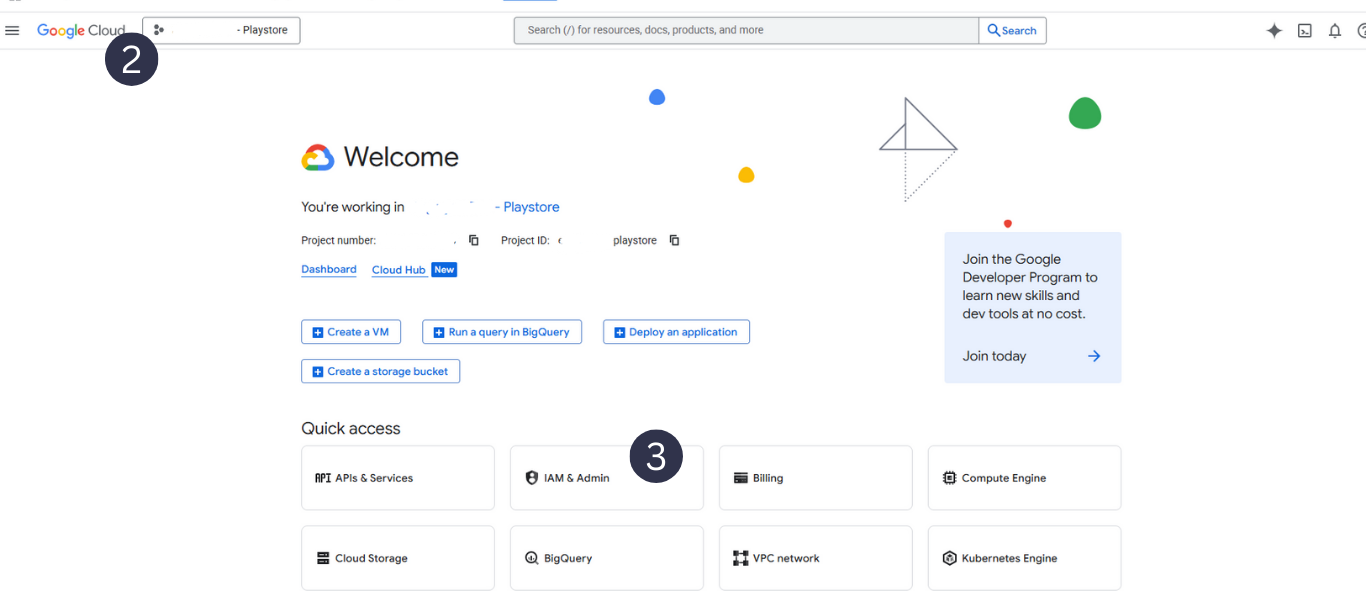
Once the app admin provides you access, you must be able to see the app here.
-
Click on IAM & Admin
-
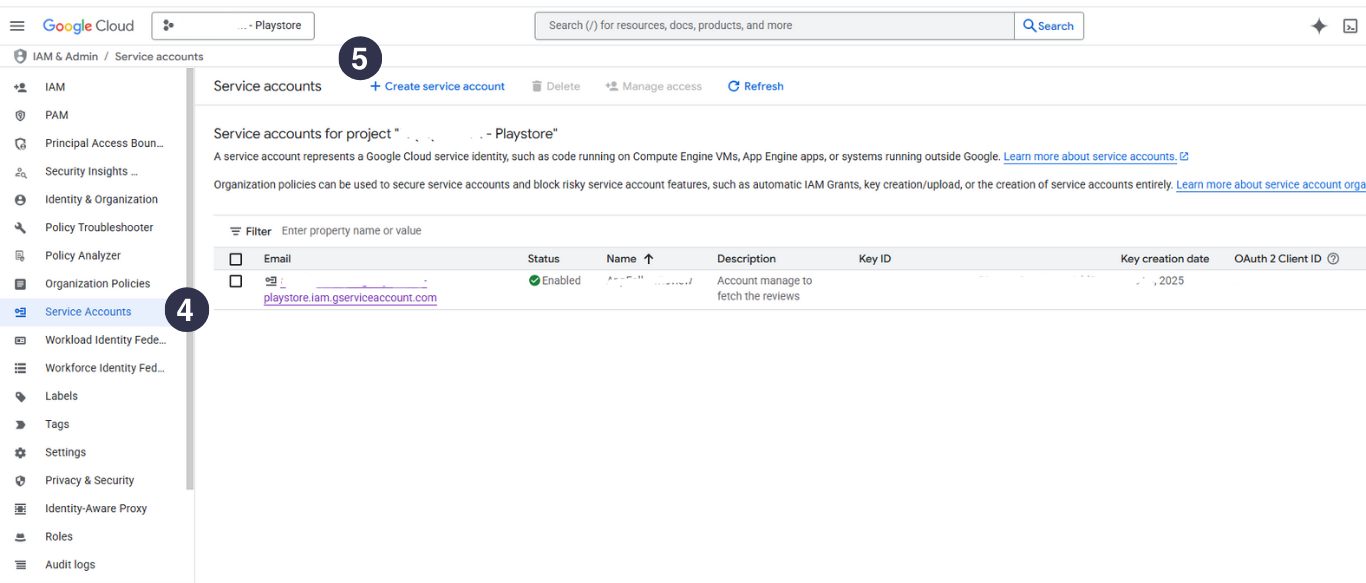
Click Service Account in the left side bar
-
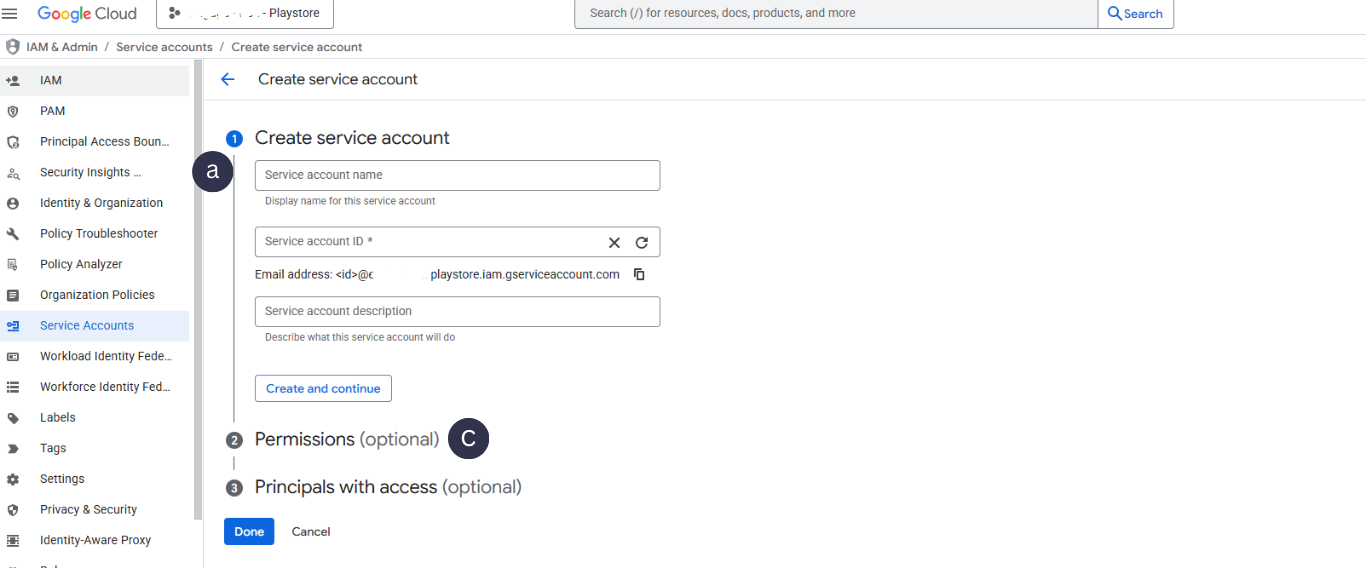
Click Create Service Account and provide:
-
A name (for example:
play-store-integration) -
A description (optional)
-
Assign the following role to the Service Account
-
“Service Account User”
-
-
-
Open the Service Account you just created and click on link under email
-
Go to the Keys tab.
-
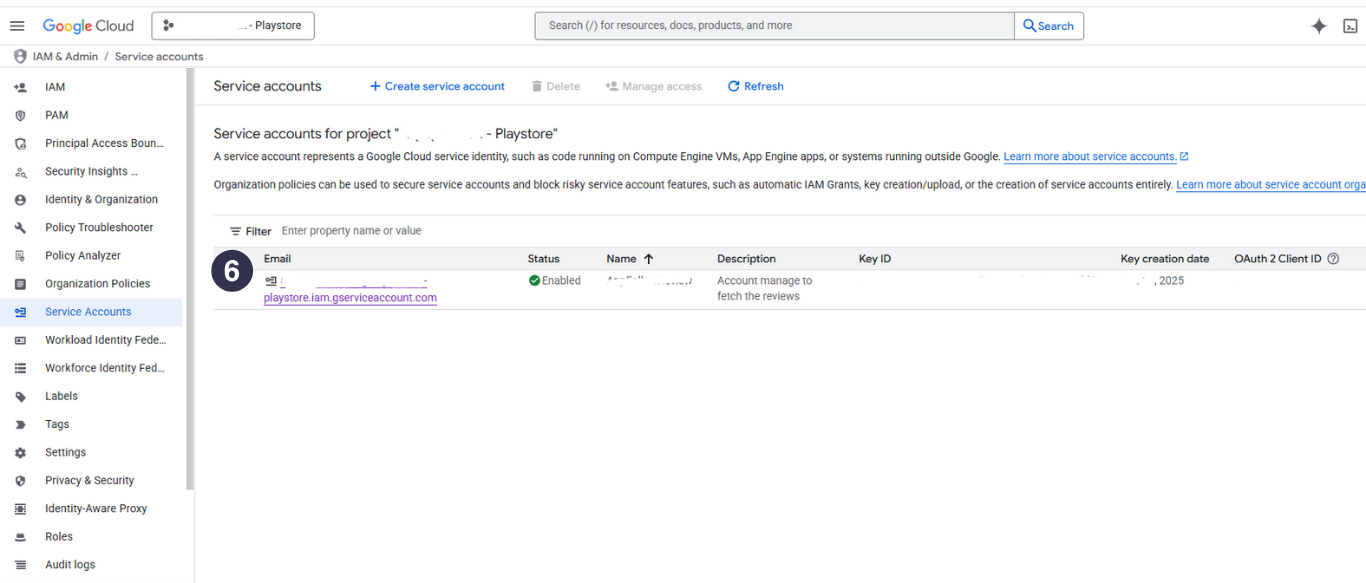
b. Click Add Key → Create new key
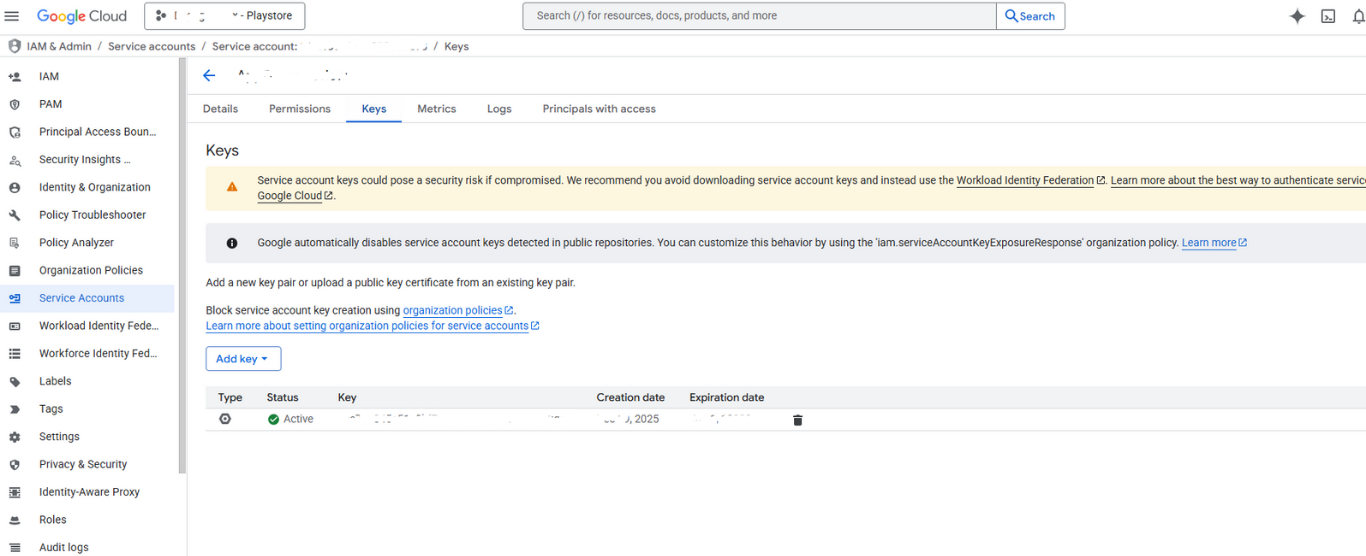
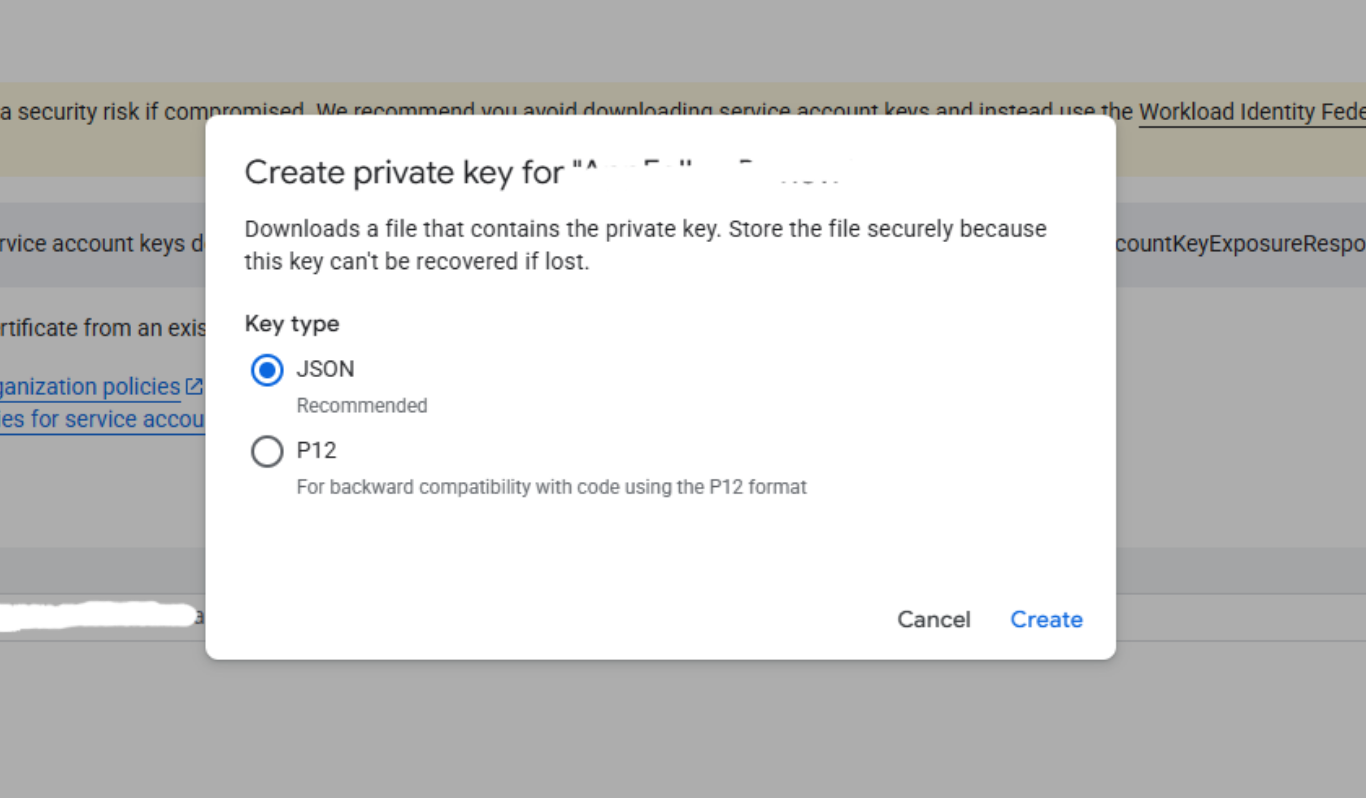
-
Now copy this service Account User_Name
-
Go to Google Play Console → API Access (Only Admin or User have Developer access to app can provide this access)
-
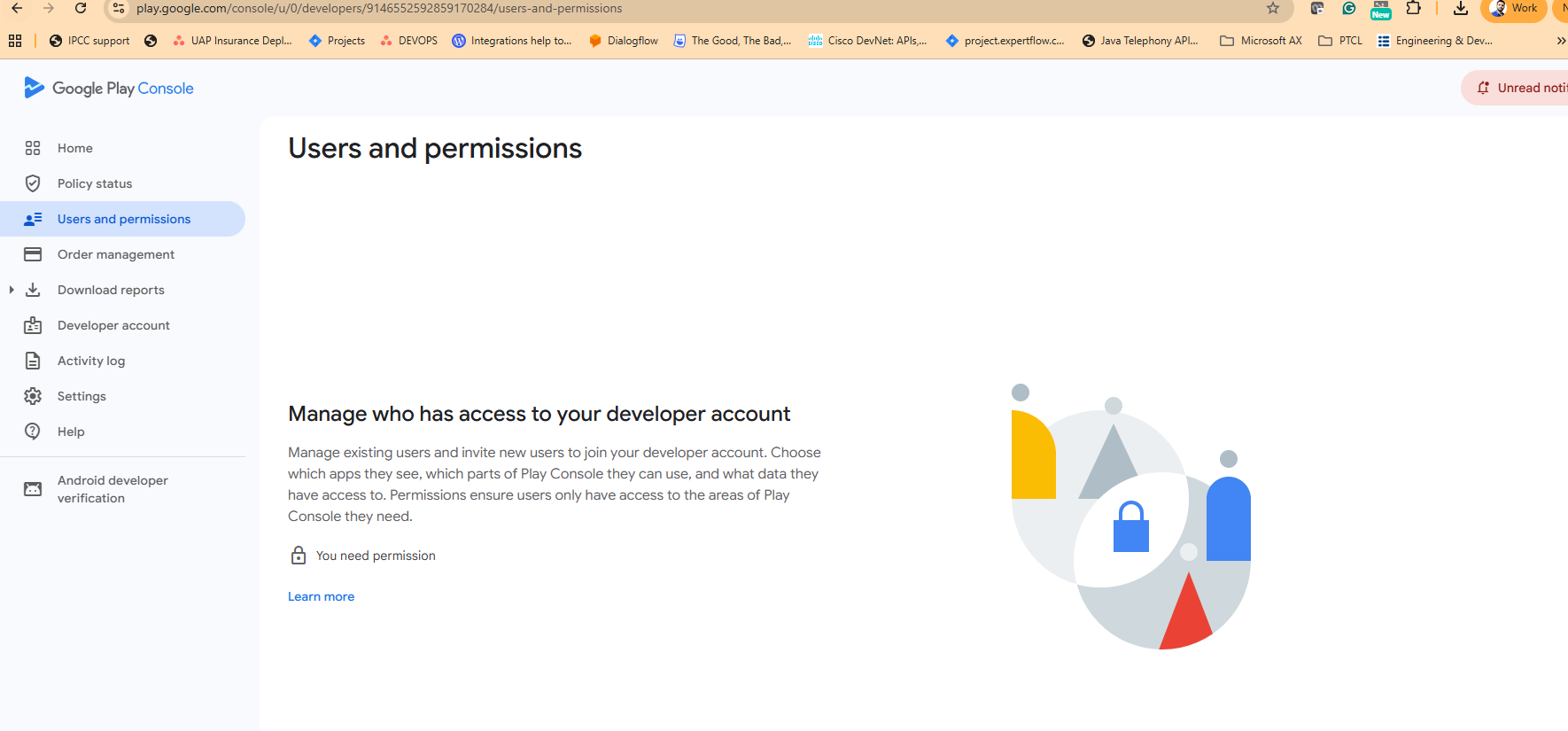
-
Link this service account user to the Google Play Console in the Users and Permission Section.
-
Assign at least the following permissions:
-
View app information
-
Reply to reviews (if you want our system to respond to reviews on your behalf)
-
-
-
Utilize the JSON file (Step 6b), and this package name in the connector, and you can start testing.
Without these permissions correctly assigned, the API will return errors such as 403 PERMISSION_DENIED.
4. Confirm the Package Name
Once the access is granted, you will see your package name (also called the bundle ID) uniquely identifies your Android app.
Examples:
-
com.whatsapp -
com.expertflow.ccaas -
pk.elitefinds.app
You can confirm your package name:
-
In your Android project (
applicationIdinbuild.gradle). -
In Google Play Console under your app’s details.
Note the exact package name for API requests and to connect to the correct app when following Configurational Guide