
Create and Assign Teams
See Agent Team to learn more about what a CX Team is and what points should be considered while designing it.
To create a team, click on the Teams tab on the left. This will open a list of all teams.
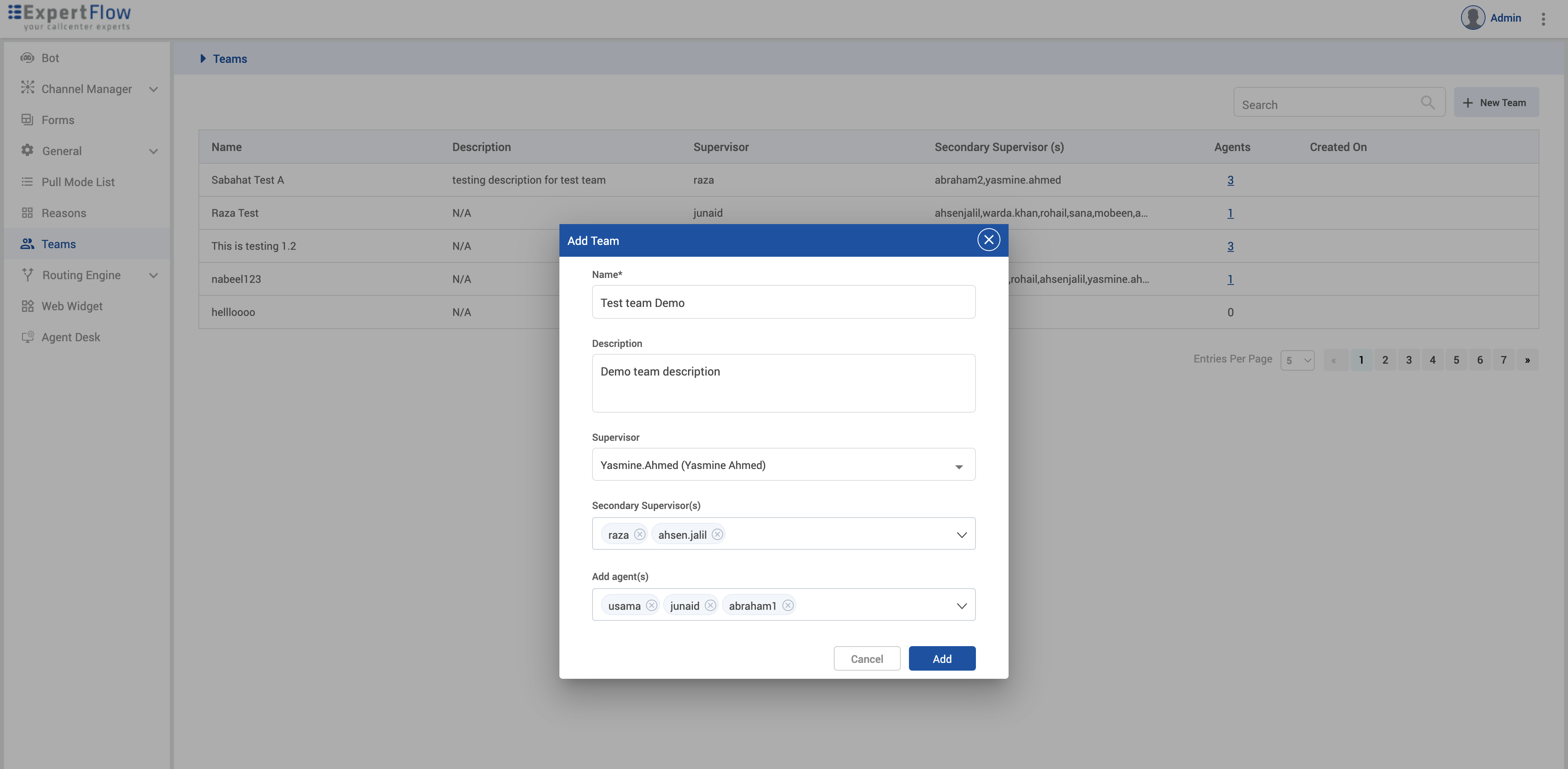
Click on the New Team button to create the team. The Dialog Box will appear.
|
Fields |
Description |
Required |
|---|---|---|
|
Name |
Define a Team |
Yes |
|
Description |
Specify some description |
No |
|
Primary Supervisor |
Choose a primary supervisor |
Yes |
|
Secondary Supervisor(s) |
Choose one or more secondary supervisors |
No |
|
Add Agent(s) |
Add agents to the team from the dropdown list. This list includes all Keycloak users with the “agent” and “supervisor” roles. |
No |
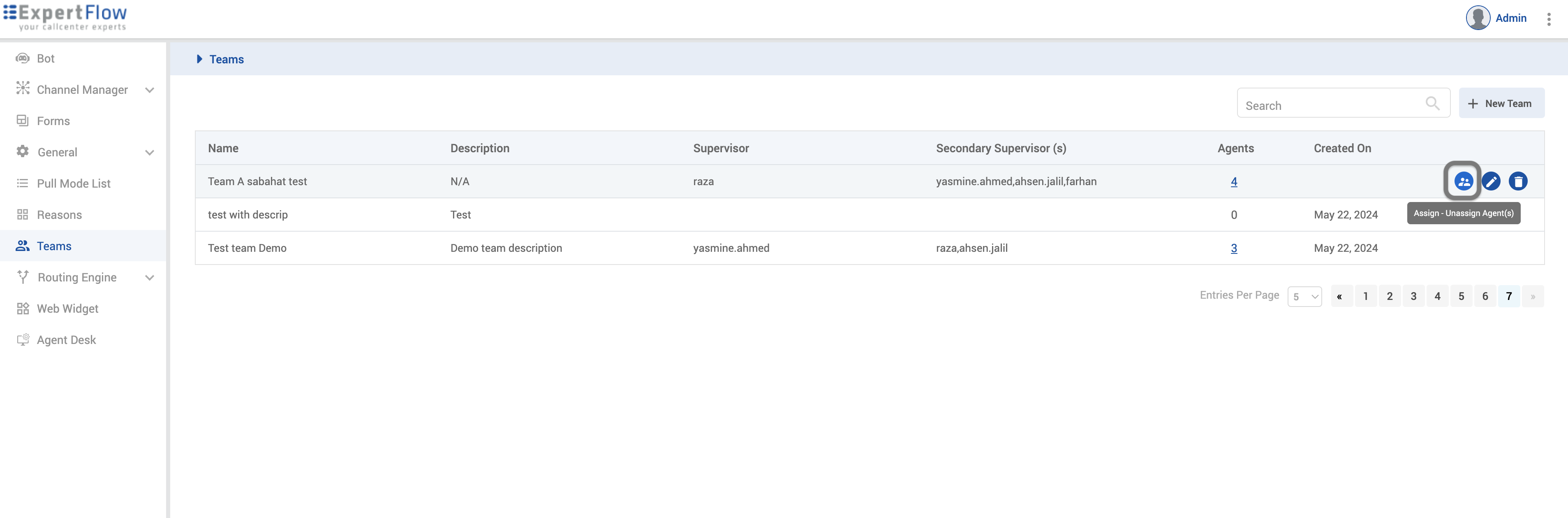
Once the team is created, you should be able to optionally assign some of the team agents directly to one of the secondary supervisors (aka Team Lead) of the team. Click on the icon against a Team name as shown in the screenshot below.
A dialogue box will appear with three sections
-
Secondary supervisors - This section will list all the secondary supervisors.
-
Assigned agents - Agents assigned to the specific secondary supervisor are listed here.
-
Available agents - All other agents of the team who are not yet assigned to any secondary supervisor.
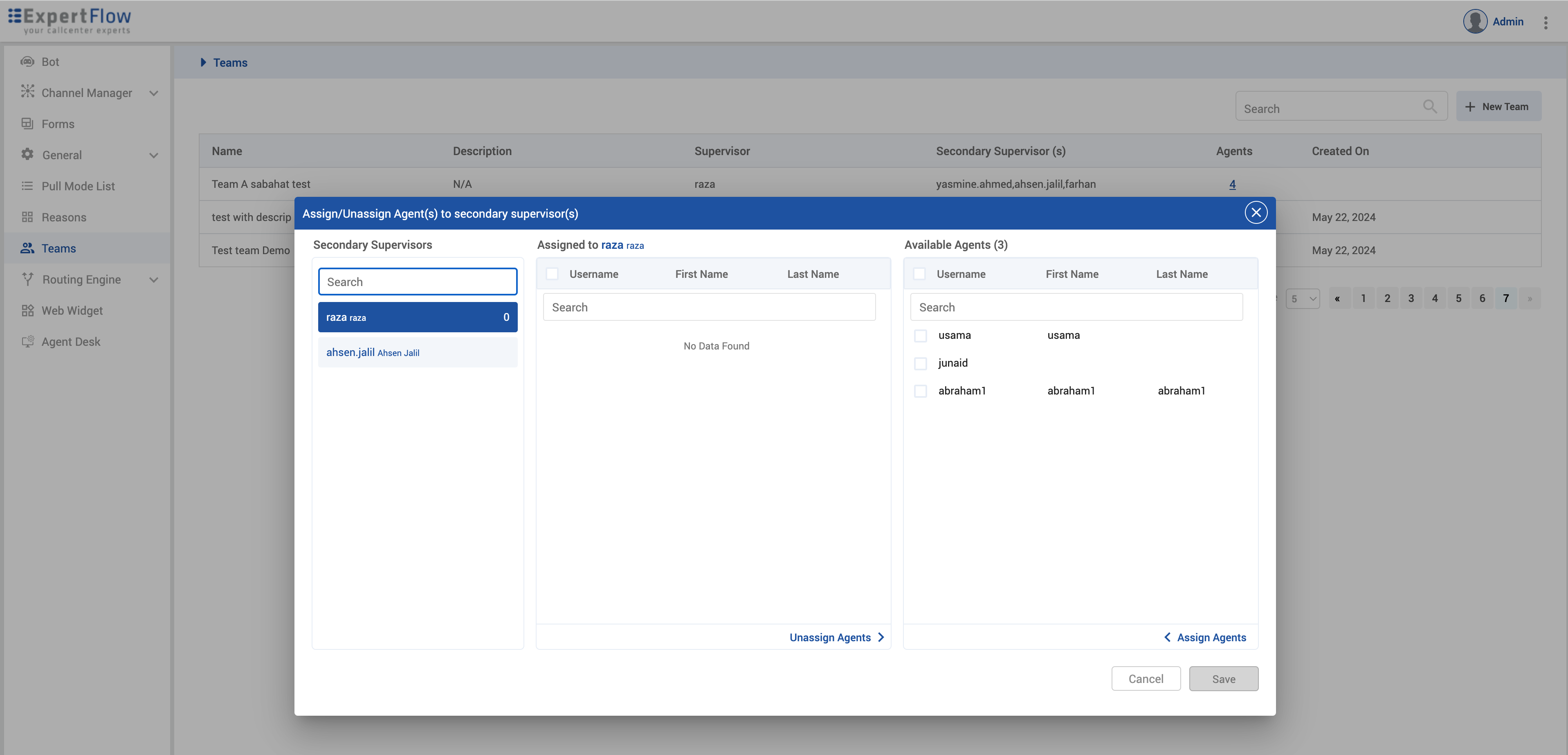
Select a secondary supervisor from the left side to see the assigned agents to him.
Select some agents from the “Available” columns to assign and click the “Assign Agents” option to assign agents to the team. Click “Save” to save the assignment.
To edit a team, hover over the pencil icon against the desired team on the Teams list.
To delete a team, hover over the delete icon against the desired team on the Teams list.
Note that if you are a supervisor, you can only delete your own teams; i.e., the teams that you create.
See Supervisor Access to Unified Admin to see how a supervisor can manage their teams, queues, and agents by logging in to Unified Admin.
-
If any new agents are added, you’ll have to log out and log in again to see those agents while creating a Team.
-
Any teams that are synchronized from Cisco cannot be deleted.
-
After a VM reboot or a restart of the Unified Admin pod, it is necessary to log in to the Unified Admin.