
People can have accounts in Metabase, and those accounts can be members of groups. These groups are used to define permissions. People can be in multiple groups.
Managing people and groups
To start managing people and groups:
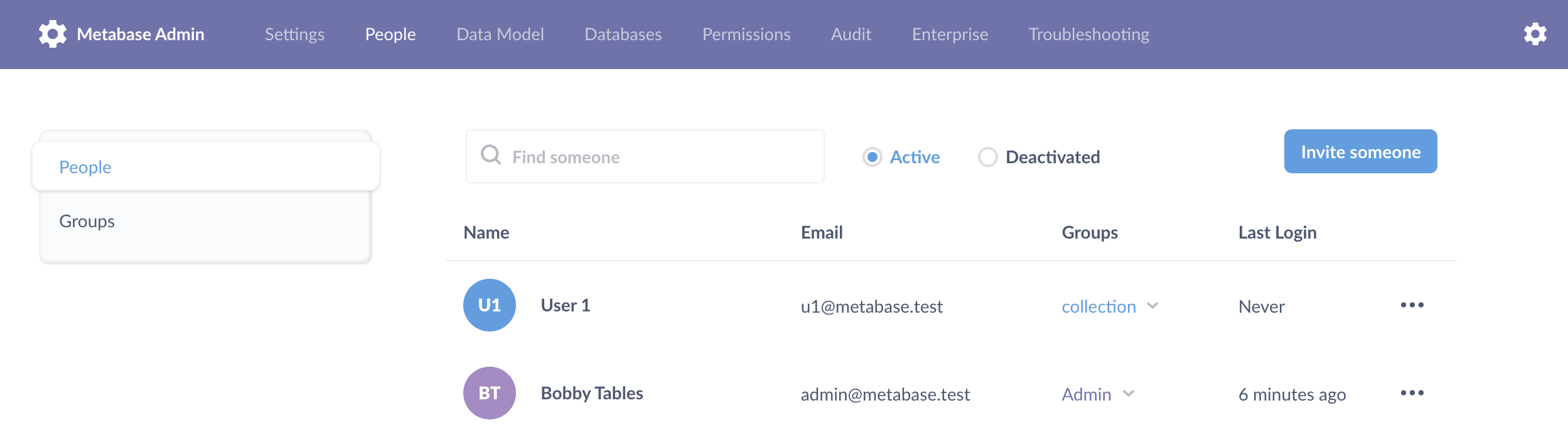
Click on the gear icon > Admin settings > People. You’ll see a list of all the people.
Creating an account
Admins can add people to their Metabase. To add a new person manually, click on the gear icon and select Admin settings. Under the People tab, click Invite someone in the upper right corner. You’ll be prompted to enter their email, and optionally their first and last names–only the email is required.
Click Create to activate an account. An account becomes active once you click Create, even if the person never signs into the account. The account remains active until you deactivate it.
If you’ve already configured Metabase to use email, Metabase will send the person an email inviting them to log into Metabase. If you haven’t yet set up email for your Metabase, Metabase will give you a temporary password that you’ll have to manually send to the person.
Editing an account
You can edit someone’s name and email address by clicking the three dots icon and choosing Edit user.
Be careful: changing an account’s email address will change the address the person will use to log in to Metabase.
Deactivating an account
To deactivate someone’s account, click on the three dots icon on the right of a person’s row and select Deactivate from the dropdown. Deactivating an account will mark it as inactive and prevent the user from logging in - but it won’t delete that person’s saved questions or dashboards.
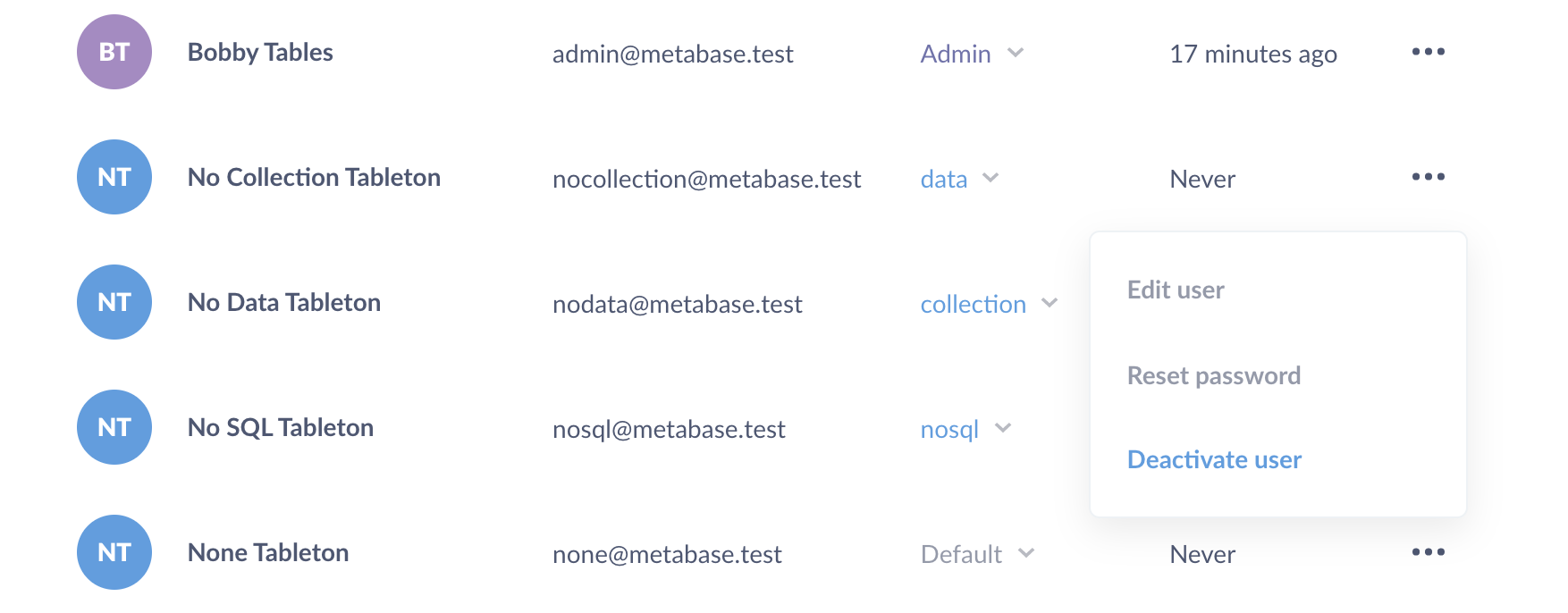
To reactivate a deactivated account, click the Deactivated radio button at the top of the people list to see the list of deactivated accounts. Click on the icon on the far right to reactivate that account, allowing them to log in to Metabase again.
Deleting an account
Metabase doesn’t explicitly support account deletion. Instead, Metabase deactivates accounts so people can’t log in to them, while it preserves any questions, models, dashboards, and other items created by those accounts.
If you want to delete an account because the account information was set up incorrectly, you can deactivate the old account and create a new one instead.
-
Change the name and email associated with the old account.
-
Deactivate the old account.
-
Create a new account with the person’s correct information
Resetting someone’s password
If you’ve already configured your email settings, people can reset their passwords using the “forgot password” link on the login screen. If you haven’t yet configured your email settings, they will see a message telling them to ask an admin to reset their password for them.
To reset a password for someone, just click the three dots icon next to their account and choose Reset Password. If you haven’t configured your email settings yet, you’ll be given a temporary password that you’ll have to share with that person. Otherwise, they’ll receive a password reset email.
Groups
To determine who has access to what, you’ll need to
-
Create one or more groups.
-
Choose which level of access the group has to different databases, collections, and so on.
-
Then add people to those groups.
-
(Optional) Promote people to group managers.
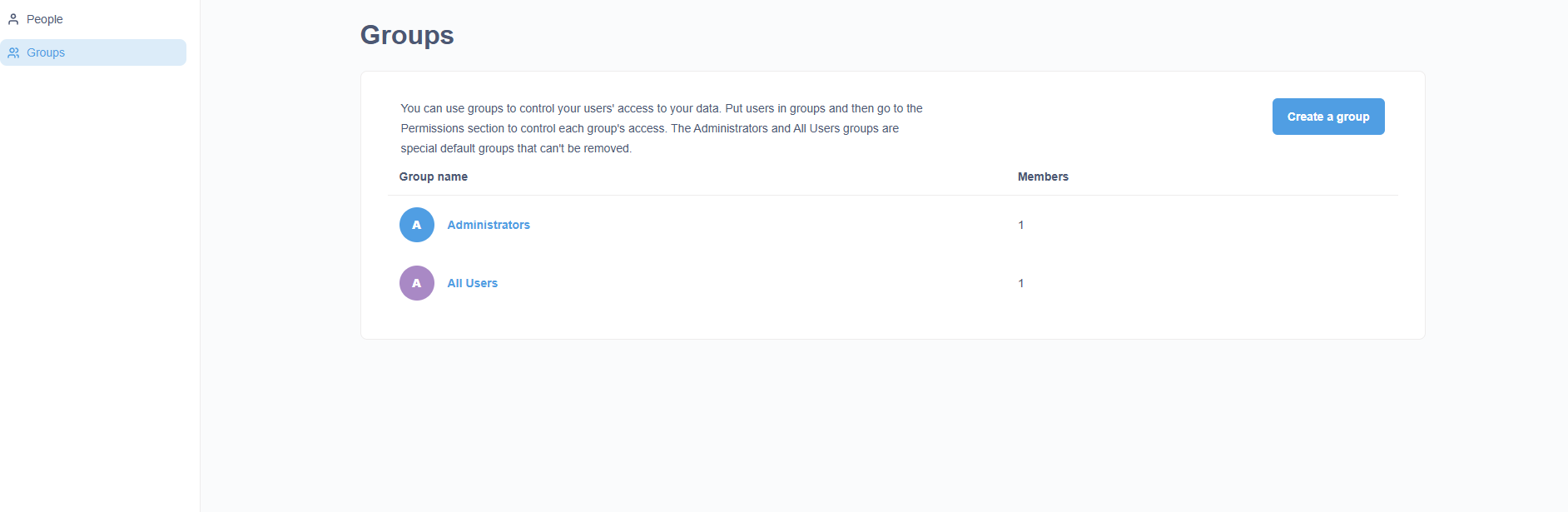
To view and manage your groups, go to the Admin Panel > People tab, and then click on Groups from the side menu.
Special default groups
Every Metabase has two default groups: Administrators and All Users. These are special groups that can’t be removed.
Administrators
To make someone an admin of Metabase, you just need to add them to the Administrators group. Metabase admins can log into the Admin Panel and make changes there, and they always have unrestricted access to all data that you have in your Metabase instance. So be careful who you add to the Administrator group!
All users
The All Users group is another special one. Every Metabase user is always a member of this group, though they can also be a member of as many other groups as you want. We recommend using the All Users group as a way to set default access levels for new Metabase users.
It’s important that your All Users group should never have greater access for an item than a group for which you’re trying to restrict access; otherwise, the more permissive setting will win out. See Setting permissions.
Creating a group
Go to Admin settings > People > Groups, and click the Add a group button.
We recommend creating groups that correspond to the teams the company or organization has, such as Tenet1, Tenet2, Tenet3, and so on. By default, newly created groups don’t have access to anything.
To remove a group, click the X icon to the right of a group in the list to remove it (remember, you can’t remove the special default groups).
Adding people to groups
To add people to that group, click into a group and then click Add members.
To remove someone from that group, click on the X to the right of the group member.
You can also add or remove people from groups from the People list using the dropdown in the Groups column.