
Overview
The Change Password feature helps keep your account secure by allowing you to update your password when required or whenever you choose.
You will be asked to change your password during your first login or after an administrator resets it. You can also change your password at any time from your profile settings.
This guide explains when and how to change your password in both situations.
First time login with temporary password
You must require to change your password in one of the following scenarios:
-
You are a new user logging in for the first time with a temporary password
-
Your password was reset by an administrator and marked as temporary
In this above mentioned cases, the system will require you to change your password before you can use the application. You will see the Change Password screen automatically immediately after logging in with a temporary password.
-
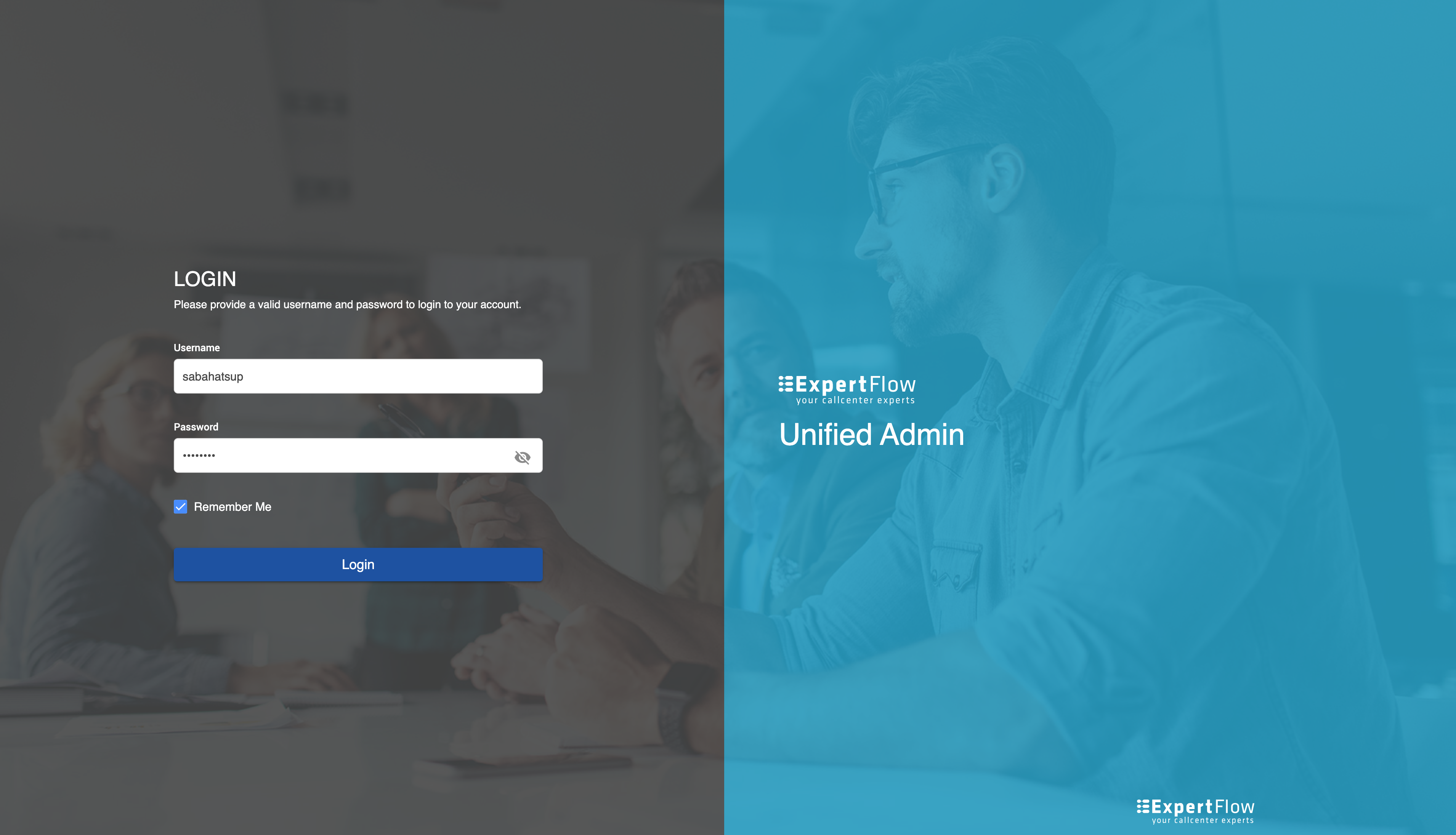
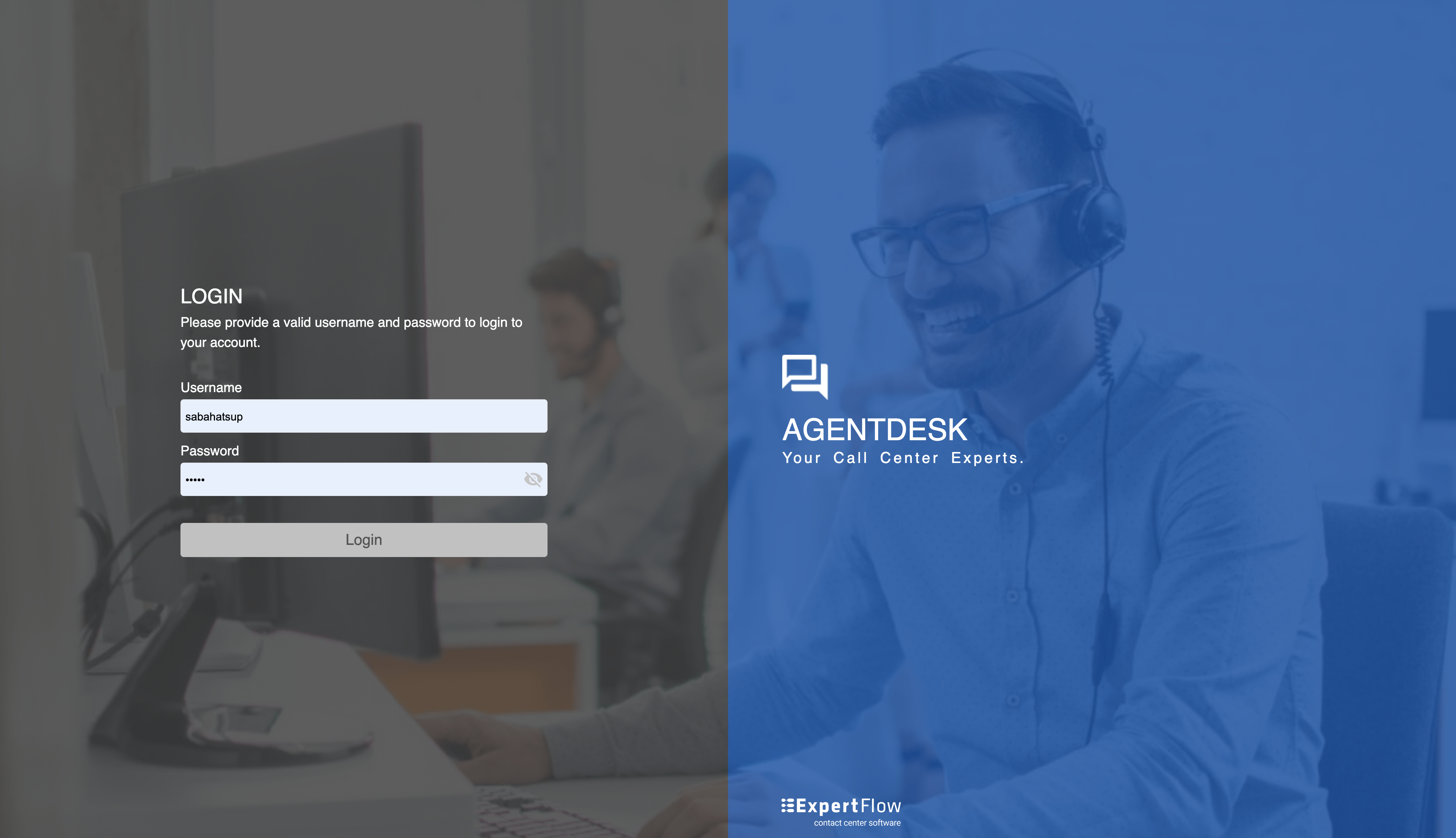
Login using the username and password provided by the admin
-
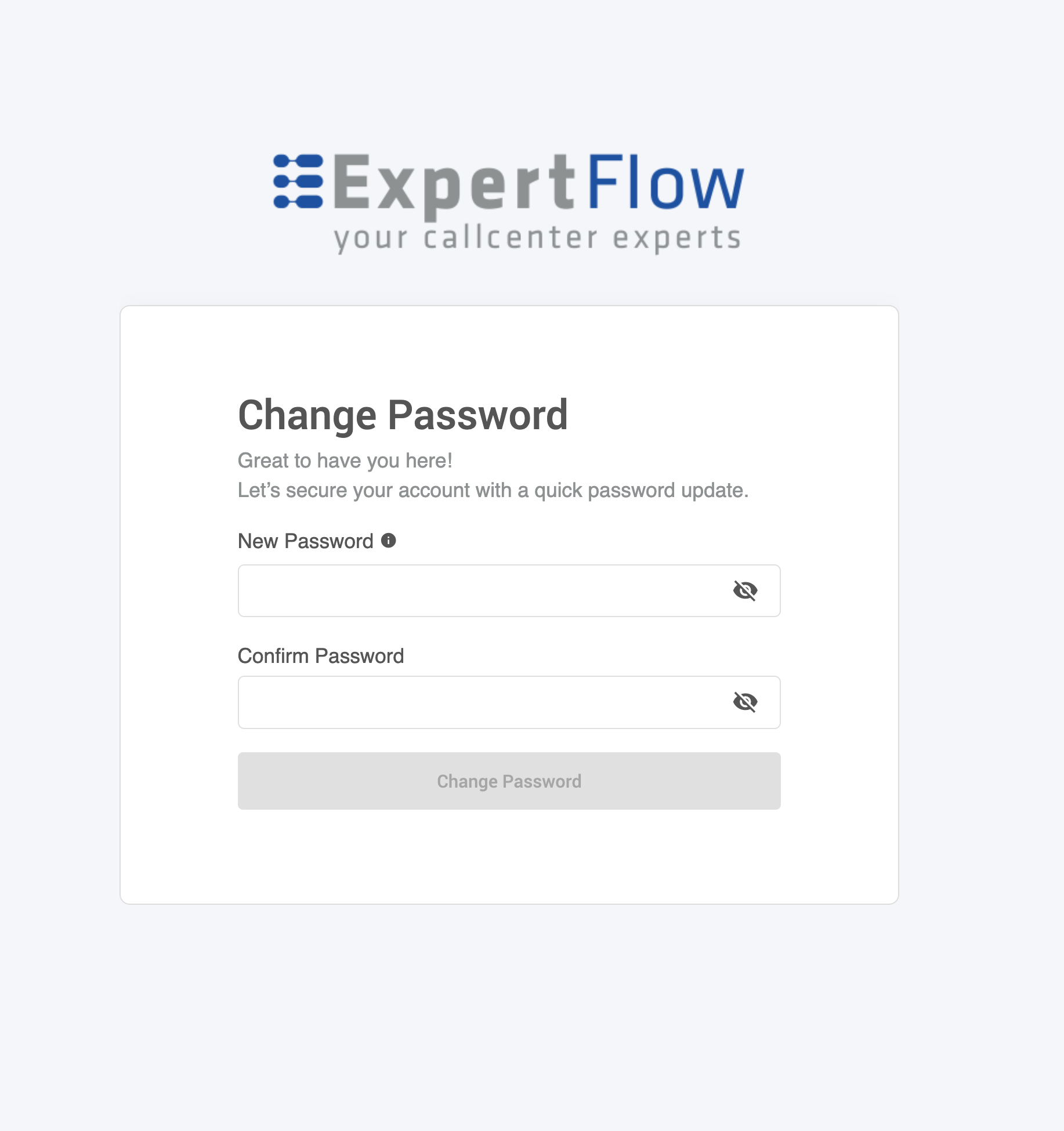
The change password screen will appear (You cannot skip this step).
-
You will be asked to enter:
-
New password
-
The new password again to confirm
-
Your password will update immediately and you will be required to login again using the new password.
User preferences for language and theme will not be applied on the temporary password change screen mentioned above.
Change Password from Profile
In this scenario, you can change your password at any time from your profile settings by selecting Change Password.
-
Login to the Application
-
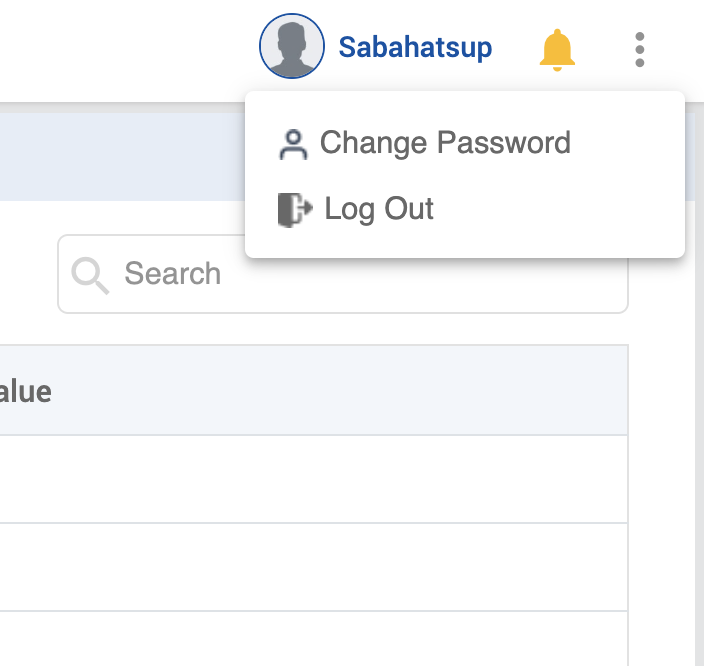
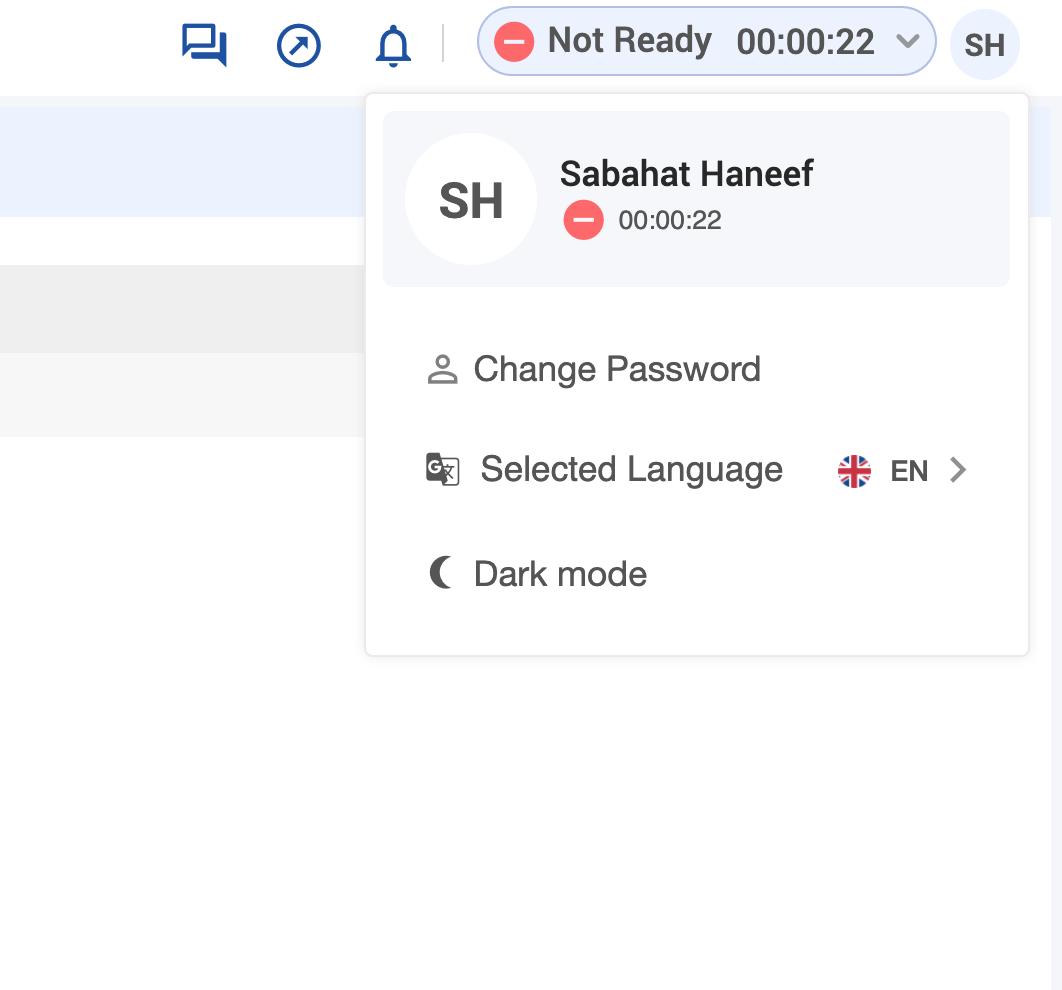
Click on the profile and then click on change password
-
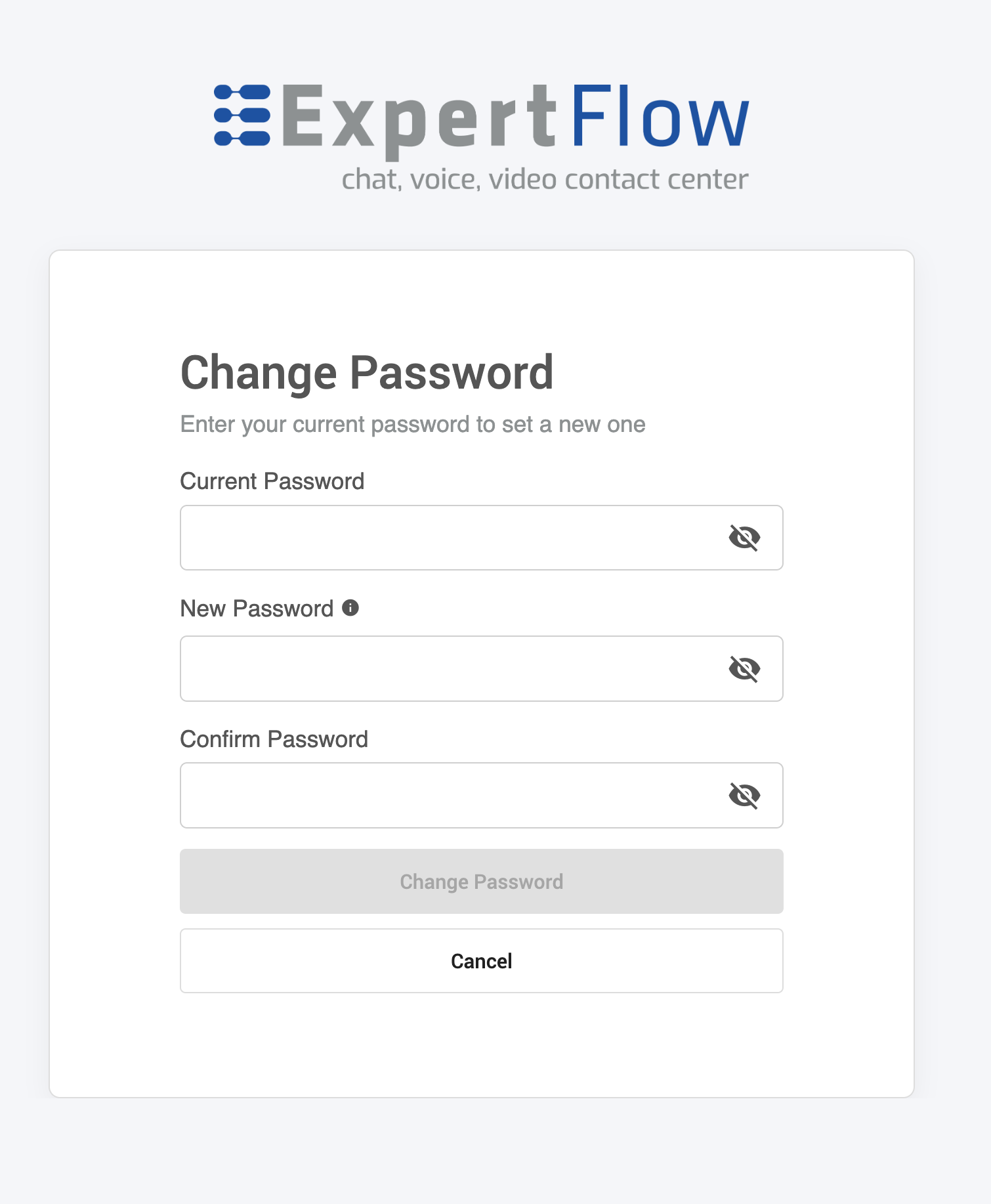
Change password screen will appear
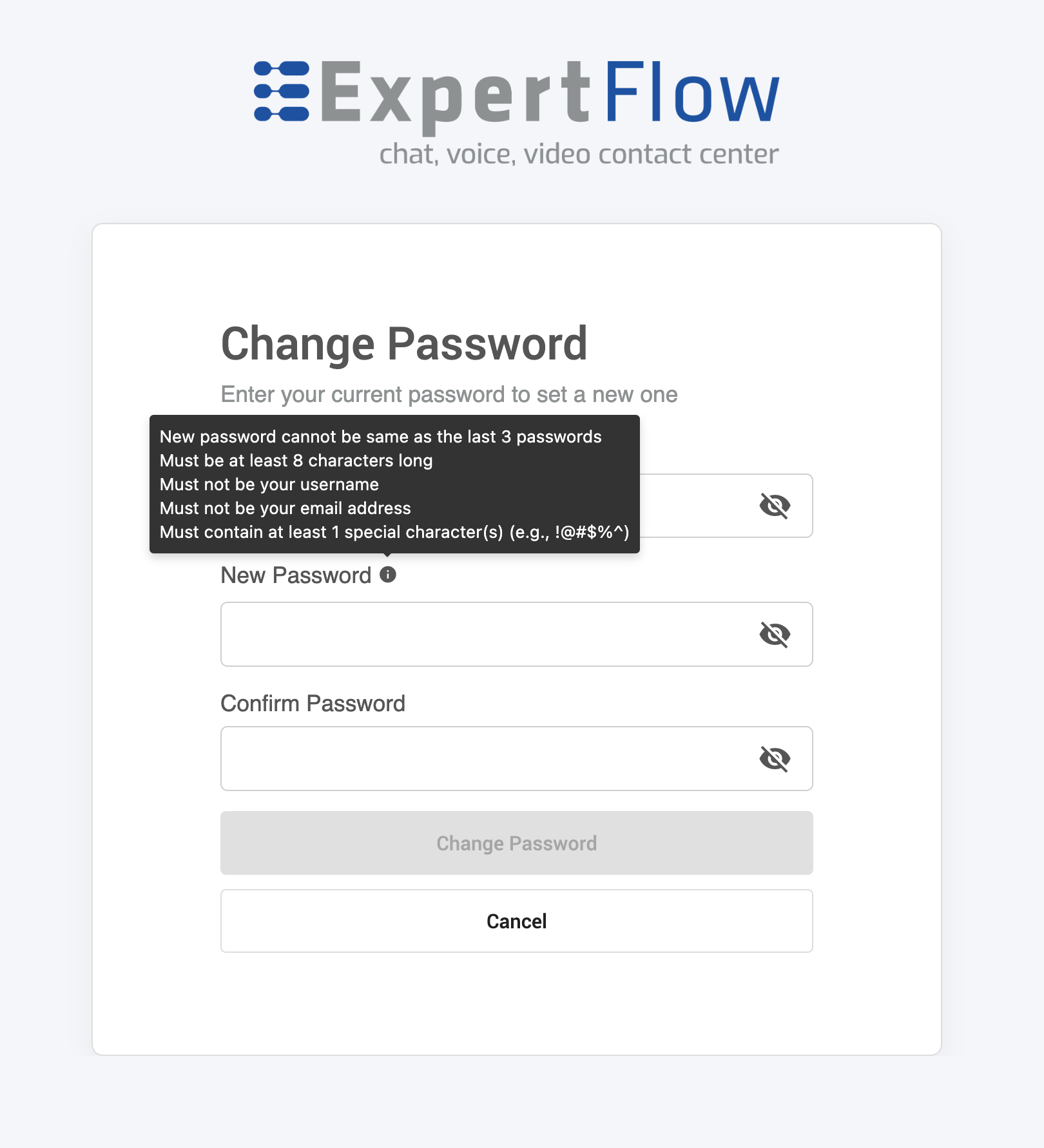
Hovering over the information (i) icon adjacent to the New Password field displays the password policies enforced by the administrator (if any).
-
You will be asked to enter:
-
Your current password
-
New password
-
The new password again to confirm
-
-
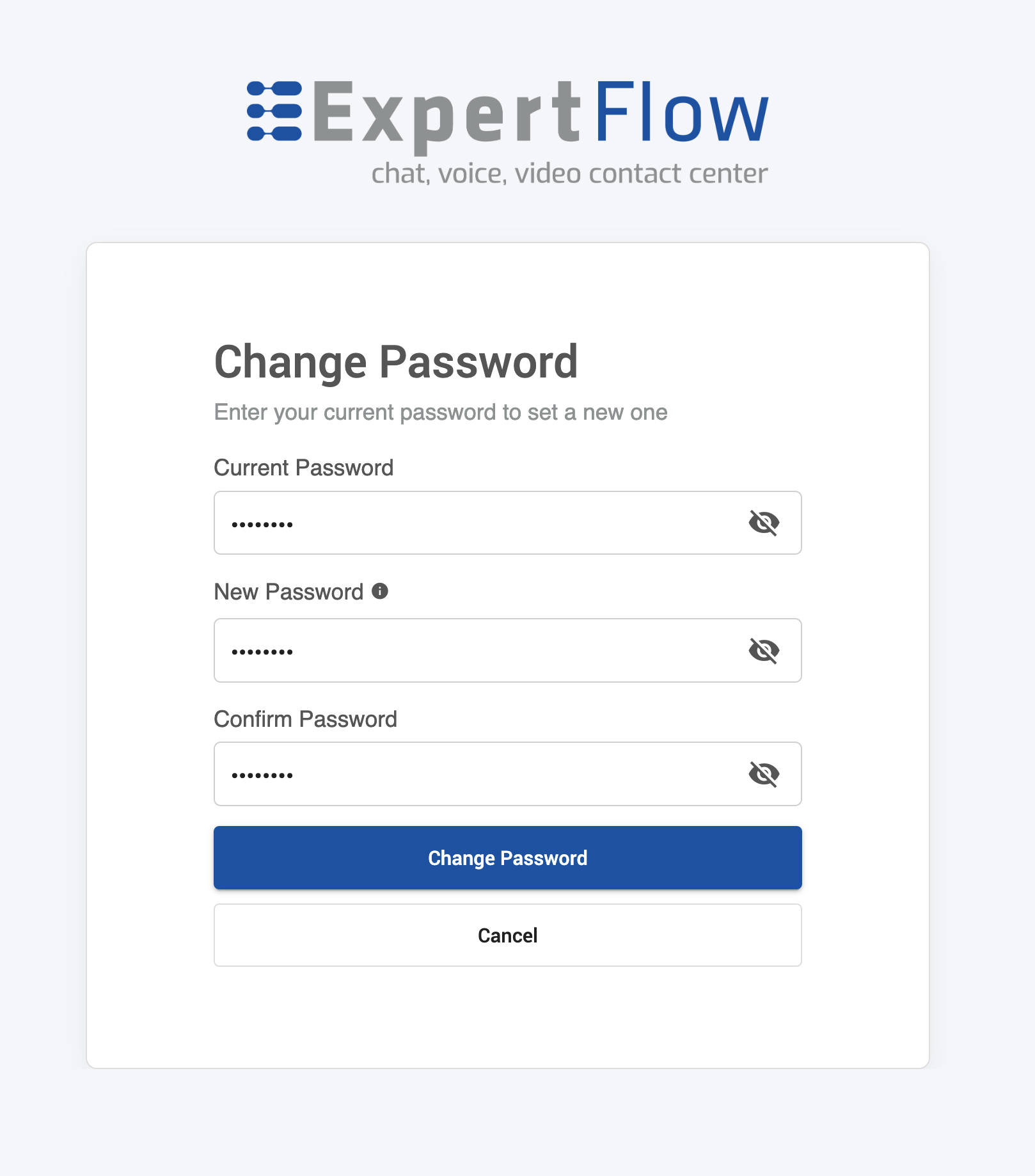
Click on Change password button
-
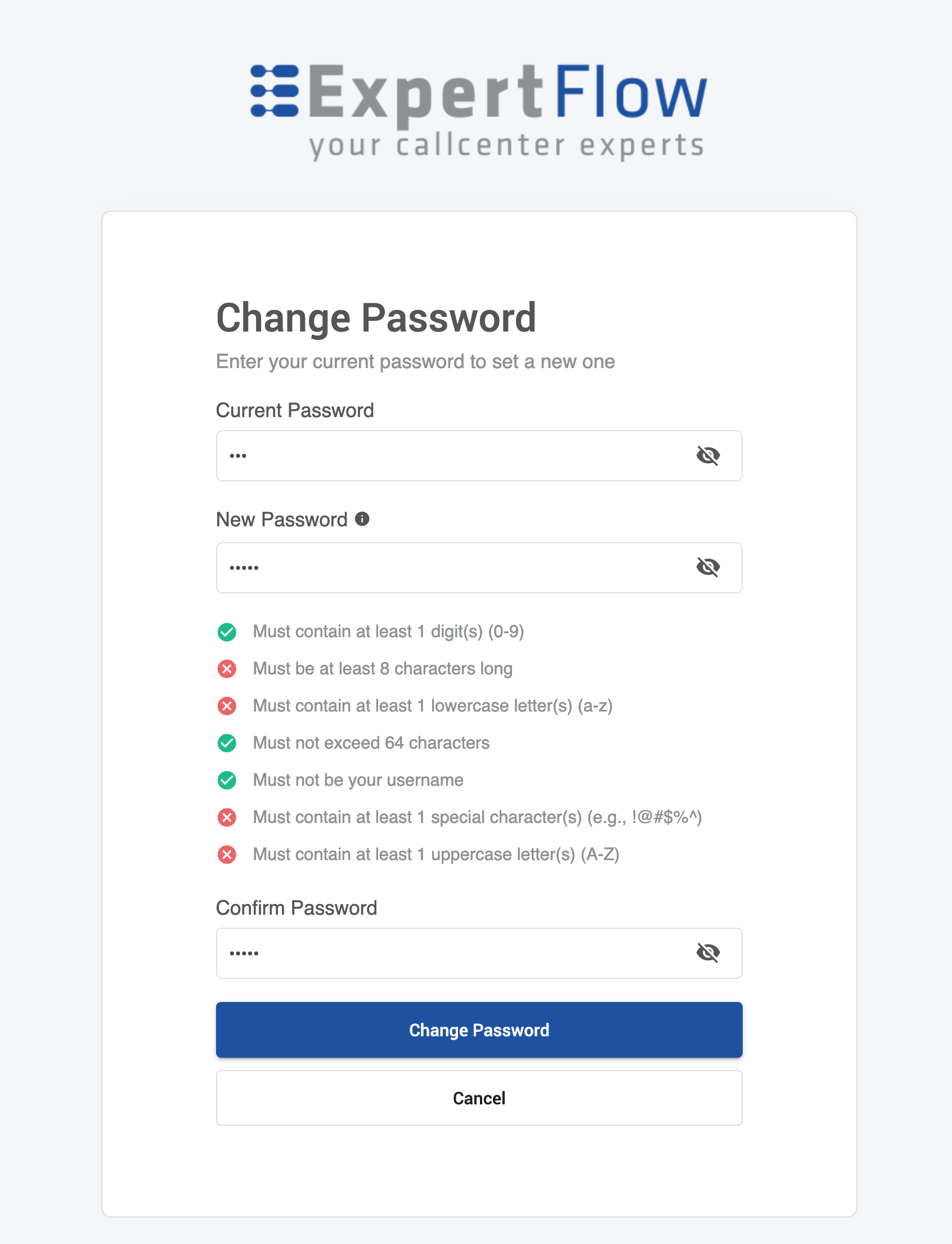
If your password does not comply with the defined policies, validation errors will be displayed.
-
When all password policies are met and you click the Change Password button, a confirmation message will appear.
-
Your new password becomes active immediately.
After your password is successfully updated, you will be required to log in again using the new password.
Password Policies
When creating a new password, you may be required to follow certain password rules. These rules are displayed on the screen to help you create a secure password.
How Password Policies Are Shown
-
The password rules are visible when you hover on information icon adjacent to the New Password
-
If your password does not meet one or more requirements, the missing rules will be highlighted under the New Password field
-
The list updates automatically as you type
This helps you understand exactly what needs to be corrected before you can proceed.
Common Error Messages
|
Message |
What It Means |
What to Do |
|---|---|---|
|
Passwords do not match |
New passwords are different |
Re-enter the same password in new password and confirm password fields |
|
Current password you entered is incorrect |
Wrong existing password |
Re-enter your current password |
|
New password cannot be same as last 1 passwords |
Password reused |
Choose a different password |
|
Must not be your email address |
You are using your email as a password |
Do not use your Email |
|
Must not be your username |
You are using your username as a password |
Do not use tour username as a password |
|
Must contain at least {x} lowercase letter(s) (a-z)
|
Your password does not match the count of uppercase/lowercase letters or special characters or digits |
Check character rules and update accordingly |
|
Must be at least {x} characters long
|
Your password does not follow the minimum or maximum character length policy |
Check length rules and update accordingly |
|
Please don’t start or end your password with blank space |
You have entered space at the start or end of the password |
Remove the space from your password |
Security Best Practices
To keep your account secure:
-
Use a strong, unique password
-
Do not share your password with anyone
-
Avoid using personal information (name, date of birth)
-
Change your password regularly
User with username “admin” cannot update the password.
If you face issues, please contact your system administrator or support team for assistance.