As a QM Admin, you can configure how performance alerts are delivered to Quality Managers. This includes setting:
-
Real-time notifications for individual reviews.
-
Scheduled bulk summaries at defined intervals.
These settings are managed in the QM Configuration tab. This guide provides step-by-step instructions for setting up notification thresholds and delivery preferences.
Login Screen
Users provisioned in IAM with the required permissions can authenticate using their credentials. The 'Remember Me' feature enables persistent login cookies for returning users
.png?cb=4210245701fbad534d3b853938cc85f2)
1. Defining the Evaluation Score Threshold
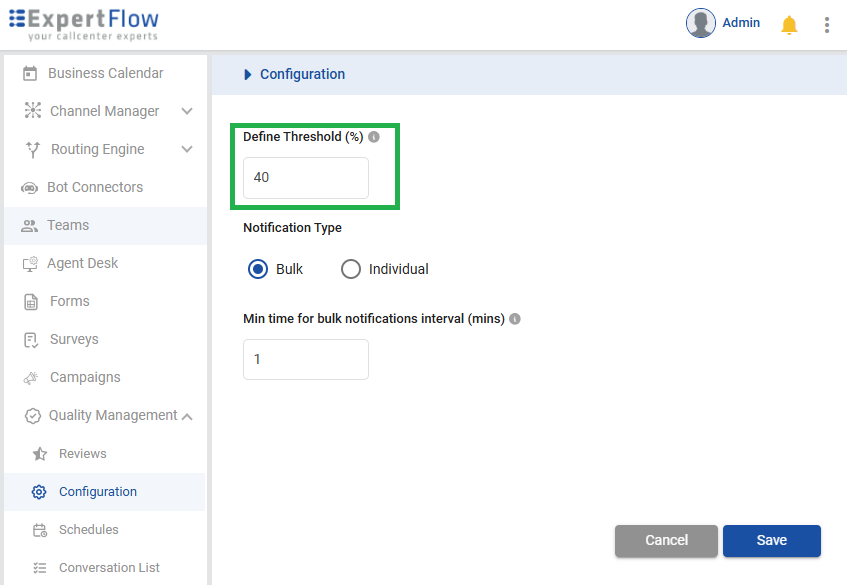
Configure the minimum acceptable evaluation score to trigger automatic notifications to quality managers when thresholds aren't met.
To set the threshold:
-
Navigate to the Configuration section within the Quality Management module.
-
Locate the Define Threshold (%) field.
-
Specify the minimum acceptable score percentage. For example, a value of "40" means any evaluation scoring less than 40% will be flagged.
-
This value is adjustable to accommodate changes in quality assurance policies.
2. Configuring Notification Type
The system lets quality managers set notification rules for low-scoring evaluations and customize alerts to match team workflows.
2.1. Notification Type
-
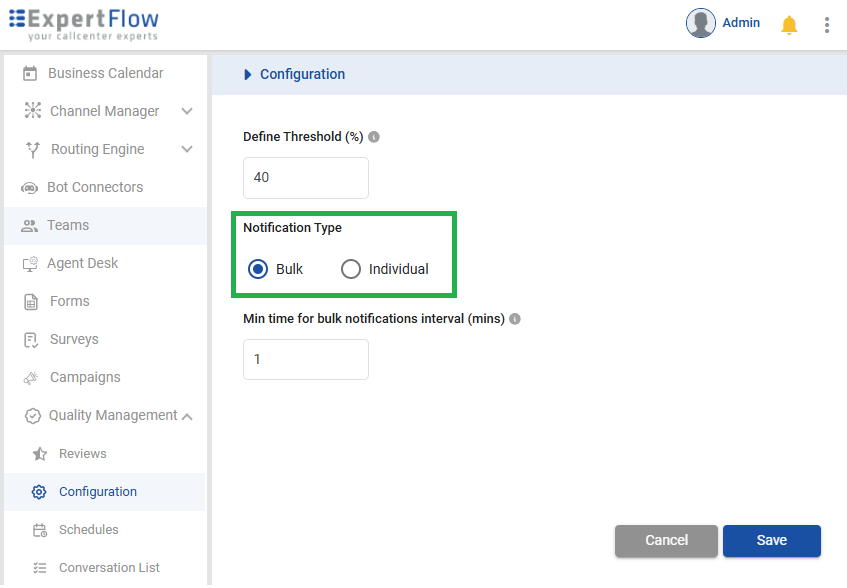
Individual: This option sends a separate notification for each evaluation that scores below the defined threshold. When a quality manager clicks on an individual notification, they will be taken directly to the specific conversation in question for immediate review. This is ideal for teams that require real-time, granular oversight.
-
Bulk: This option consolidates all low-scoring evaluation notifications into a single, summary alert. Clicking on this bulk notification will direct the quality manager to a list of all the reviews that did not meet the threshold within a specified time frame. This method is useful for managers who prefer to review quality issues in batches, preventing a constant stream of individual alerts.
To select a notification type:
-
In the Configuration screen, find the Notification Type section.
-
Choose either Bulk or Individual by selecting the corresponding radio button.
2.2. Bulk Notification Interval
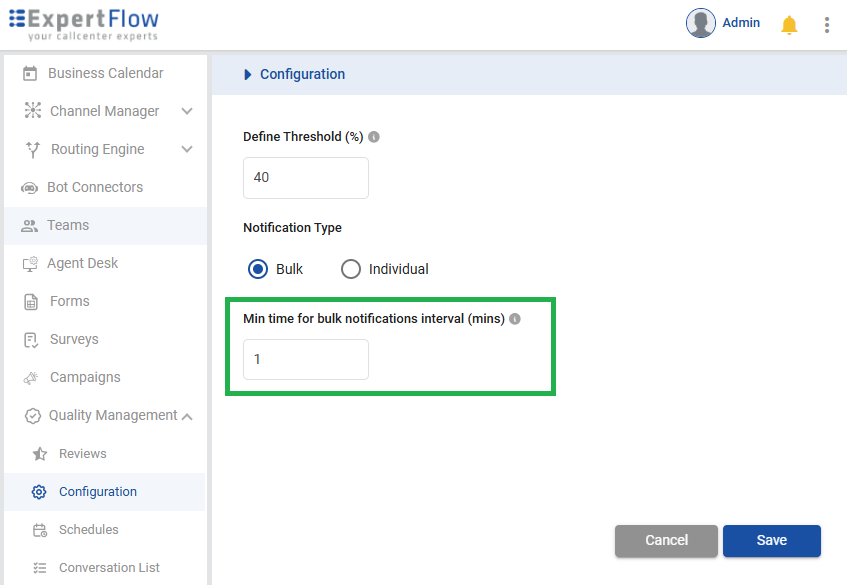
When Bulk notifications are enabled, this setting specifies the minimum duration (in minutes) for aggregating low-scoring evaluations before notification delivery, reducing alert frequency through consolidation.
To set the bulk notification interval:
-
Ensure that Bulk is selected as the Notification Type.
-
In the Min time for bulk notifications interval (mins) field, enter the desired time in minutes. For instance, entering "1" means the system will gather all low-scoring reviews within a 1-minute interval and send them in a single notification.
-
Adjust this time based on the call/chat volume and the desired frequency of summary alerts for quality managers.